
CapturePoint 6 by Ademero
Stop retyping invoice data.
Extract invoice fields and line items from PDFs and scans. Review the results, then export. All on your Windows PC.
No sign-up. No credit card. Sample jobs included.
For Windows 10 and 11 (64-bit) PCs.
From invoice to clean data in three steps.
- Step 1
Bring in invoice PDFs or scans
Scan with any TWAIN scanner, or add files: PDF, TIFF, JPEG, PNG, BMP or GIF. It splits a stack into separate invoices for you.
- Step 2
Extract fields and line items
It reads the vendor, invoice number, dates, PO number and total, plus every line in the item table, all on your PC, and checks the line-item math.
- Step 3
Review, then export
Check anything it flags and confirm the invoice. It files the result in your folders or Content Central, and can also send it to SharePoint or OneDrive, Google Drive, Dropbox or Nucleus One.
See it on a sample invoice
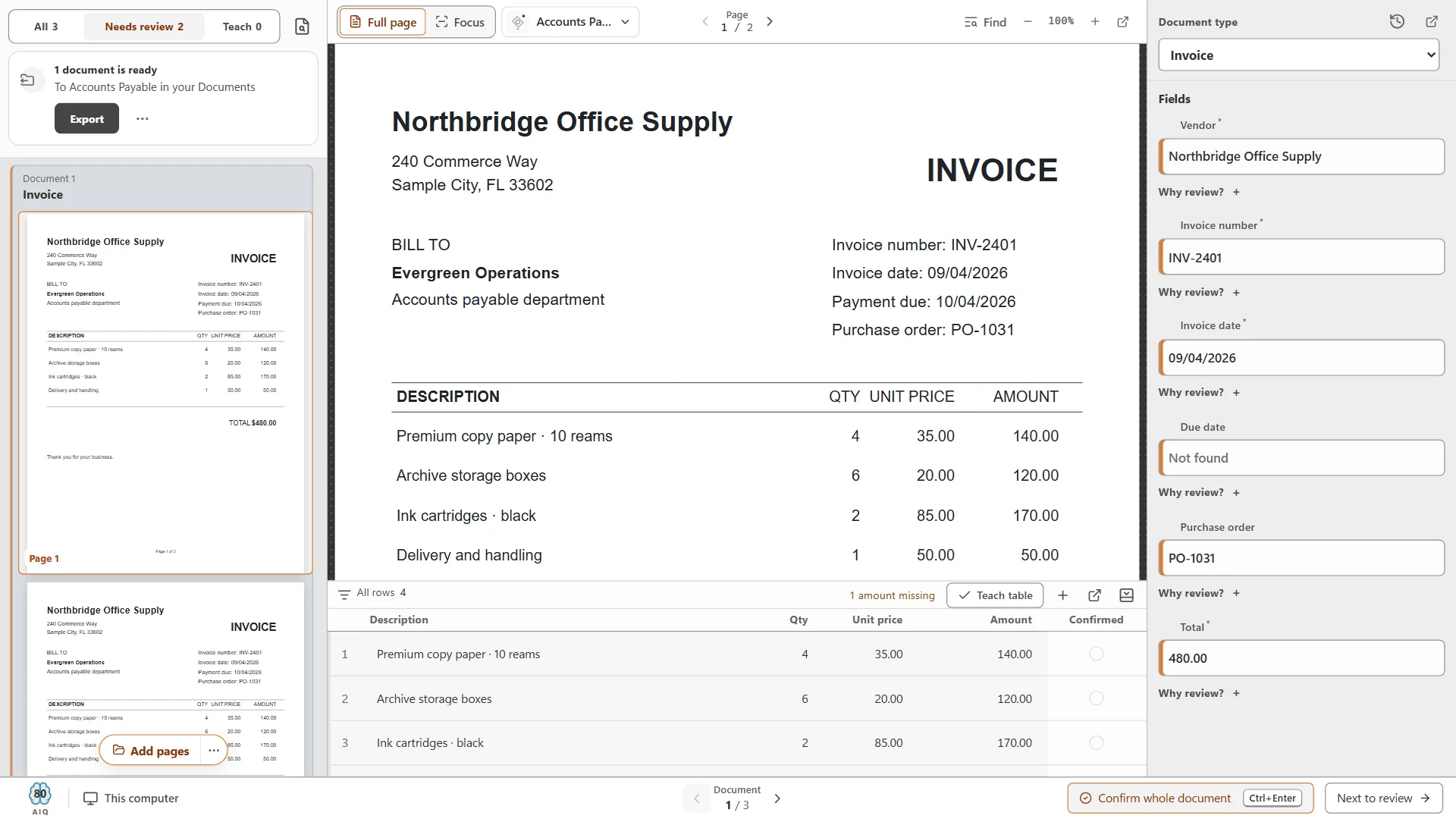
The invoice on the left. Its data on the right.
This is the real review screen with a sample invoice. Click the picture to see it full size.
What it pulled from this invoice
- Vendor
- Northbridge Office Supply
- Invoice number
- INV-2401
- Invoice date and due date
- 09/04/2026 and 10/04/2026
- Purchase order
- PO-1031
- Total
- 480.00
- Line items
- Description, quantity, unit price and amount for each row
What the review shows you
- Line 1 is flagged because 4 at 35.00 is not 141.00. CapturePoint checks line-item calculations and flags detected inconsistencies for review.
- Each field shows why it needs a look, and only the uncertain ones wait for a person.
- When it looks right, Ctrl+Enter confirms the whole invoice, and it learns from every correction.
Try it on the sample invoices, then on yours.
No sign-up and no credit card. The accounts payable sample job is ready the first time you open it.
After review
File invoices where your team works.
Reading happens on your PC. Each job files its finished invoices in your folders or Content Central, and can also send them on to the cloud services below.
On your network
Local folders
A searchable PDF (optionally archive-grade PDF/A), a data file with every captured value and a text file, named and filed into folders the way you choose.
Ademero
Content Central
Connect, pick a catalog and match your invoice fields to its fields, or create a catalog from the job. Content Central files and names each invoice.
Ademero
Nucleus One
Connect with a Nucleus One API key, pick a project or folder, and send values to the Nucleus One fields with the same names, or map them yourself.
Microsoft 365 work or school account
SharePoint and OneDrive
Send finished invoices to a library or folder you pick. SharePoint can also receive the extracted values in library columns with matching names.
Cloud storage
Google Drive
Send finished invoices to a folder you pick, with the extracted values added to each file’s details.
Cloud storage
Dropbox
Send finished invoices to a folder you pick, with the extracted values embedded in each PDF.
Cloud destinations receive the finished PDF with its extracted values embedded; the separate data and text files are written to local folders.
Before you download
What do I need to run it?
A Windows 10 or Windows 11 (64-bit) PC. A graphics card is optional; it makes CapturePoint faster. The installer is about 367 MB, and the first time it opens it downloads its components once (about 6 GB).
Where are my invoices processed?
CapturePoint reads and extracts invoice data locally on your Windows PC, rather than sending it to a cloud service for recognition. If you configure an export destination, it sends finished documents to the service you choose.
How does the free trial work?
Download and install it. The trial starts the first time you open the app, with no sign-up and no credit card. If you need more time when it ends, you can add one more free week.
Can I try it before I use my own invoices?
Yes. It comes with ready-made sample jobs, including an accounts payable job with sample invoices, and a built-in demo scanner, so you can see it work before you add a single real document.
Is the extraction always right?
No reader is right every time, so CapturePoint checks its own work. Fields it is not sure about wait for a person with the reason shown, it checks line-item calculations and flags detected inconsistencies for review, and it learns from the confirmations and corrections your team makes.
Where do the results go?
To local folders, where each invoice can arrive as a searchable PDF (optionally archive-grade PDF/A), a data file with every captured value and a text file, named and filed the way you choose; or into Ademero Content Central. A job can also send each finished PDF, with its values embedded, to SharePoint or OneDrive, Google Drive, Dropbox or Nucleus One. Reading always happens on your PC; only finished documents go to the destinations you set up.
What does it cost?
CapturePoint 6 is priced per scanning station, with unlimited scanning. Tell us about your setup on the pricing page and we will send pricing that fits, or book a free live demo and we will walk you through it.
We already use CapturePoint. Do we pay again?
No. CapturePoint 6 is included for existing CapturePoint customers with active maintenance and support.
Get your invoice data without the typing.
Runs on your own Windows PC. Priced per scanning station, with unlimited scanning.
Need a hand first?
We will show you around on a free live demo, with your own invoices if you like.
Already a CapturePoint customer? CapturePoint 6 is included with active maintenance and support. Get pricing