Invoice processing
Stop keying invoices. Read them, check them, route them for approval.
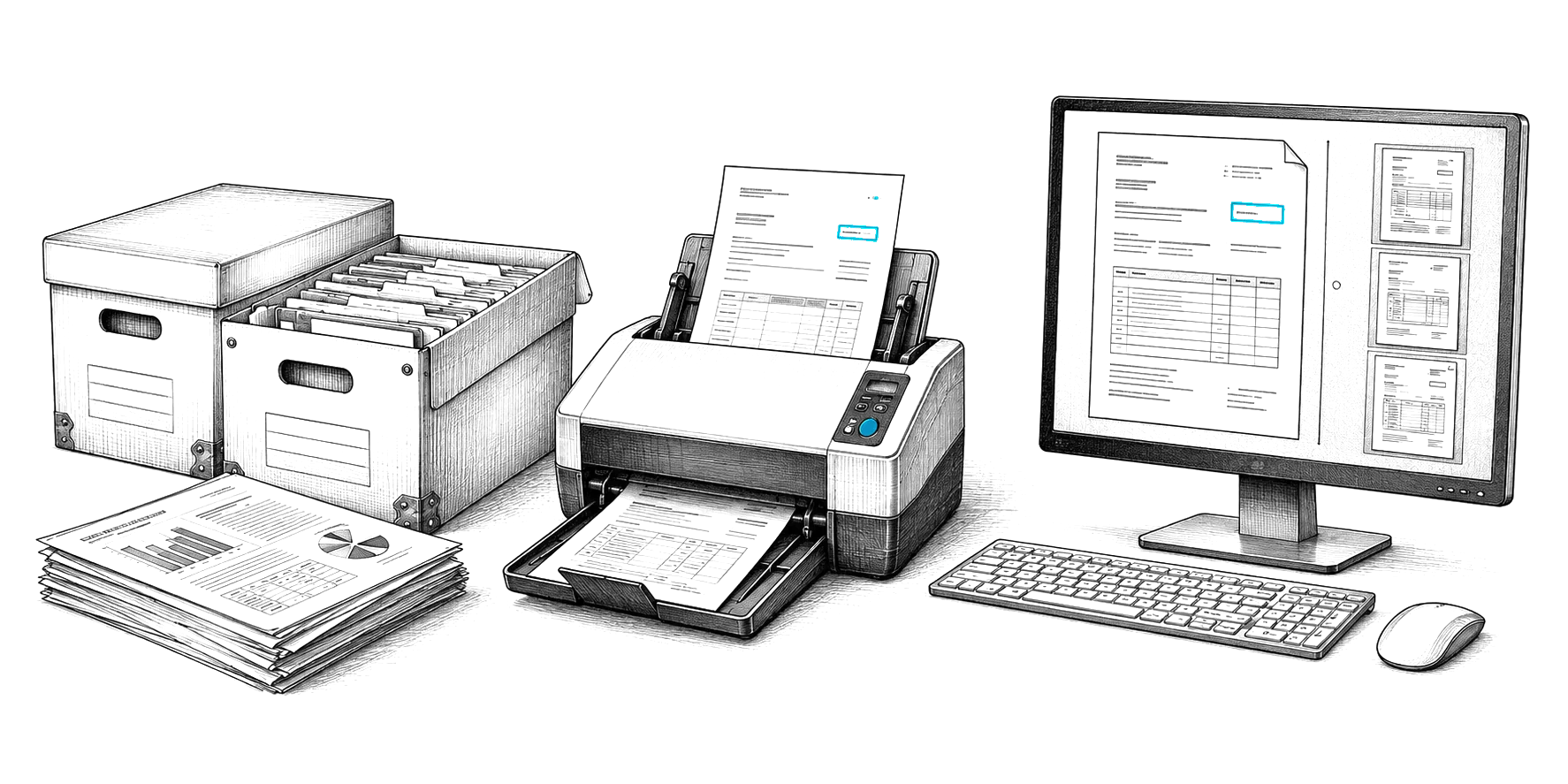
CapturePoint 6 reads every header field and line item on your own PC and checks the math. Content Central sends each invoice to the right approver and exports it to accounting. Your team only looks at what needs a person.
Windows 10 and 11 (64-bit). The trial starts the first time you open it, with no form to fill in.
01Where AP time goes
The work is not the decisions. It is the typing, the chasing and the filing.
Most of an invoice's life is handling: someone keys it, someone forwards it for approval, someone files it and someone hunts for it later. That is the part software should take away.
Keying the header, invoice after invoice
Vendor, invoice number, dates, PO and total typed from the page into the accounting system. Every keystroke is a chance to swap two digits.
Line items that nobody wants to type
Matching to a purchase order or coding lines to different GL accounts means typing the table too, so most teams skip it and post one total.
Approvals that live in someone’s inbox
The invoice gets forwarded, waits while the approver is out, and comes back days later. Meanwhile the vendor calls asking where the payment is.
Finding it again
An auditor or a vendor asks about one invoice and someone has to dig through folders, mailboxes and a filing cabinet to find it and its approval.
02The path
Five stops from the envelope to accounting.
Each product does one part. Use CapturePoint 6 on its own to stop typing, add Content Central for approvals, or use Paige when invoices only ever arrive as files.
- 01
Arrives
Paper from the mail tray, PDFs from the AP mailbox, statements and credit memos mixed in.
ScannerEmailFolder - 02
Read
Split into documents, sorted by type, header fields and line items pulled out.
CapturePoint 6Paige - 03
Checked
Line math, required fields, your vendor list. Anything unsure waits, with the reason shown.
CapturePoint 6Paige - 04
Approved
Routed to the right approver by amount, with deadlines, escalation and sign on approval.
Content Central - 05
Exported and filed
Data to accounting, the PDF filed by vendor and invoice number where anyone can find it.
Content CentralFolders
03Reading invoices with CapturePoint 6
Every field and every line, read on your own PC.
CapturePoint 6 is a Windows app. It scans with your TWAIN scanner or imports PDF, TIFF, JPEG, PNG, BMP and GIF files, and the reading happens locally on that computer.
It splits and sorts the stack first
Drop a mixed pile in the feeder. CapturePoint 6 finds where each document starts and ends and recognizes what it is. The 2-minute tour shows it on an invoice, a purchase order, a credit memo, a W-9 and an expense report; set a job up from your own folder and it finds your types, such as statements and remittance advice.
Then it reads the fields you post
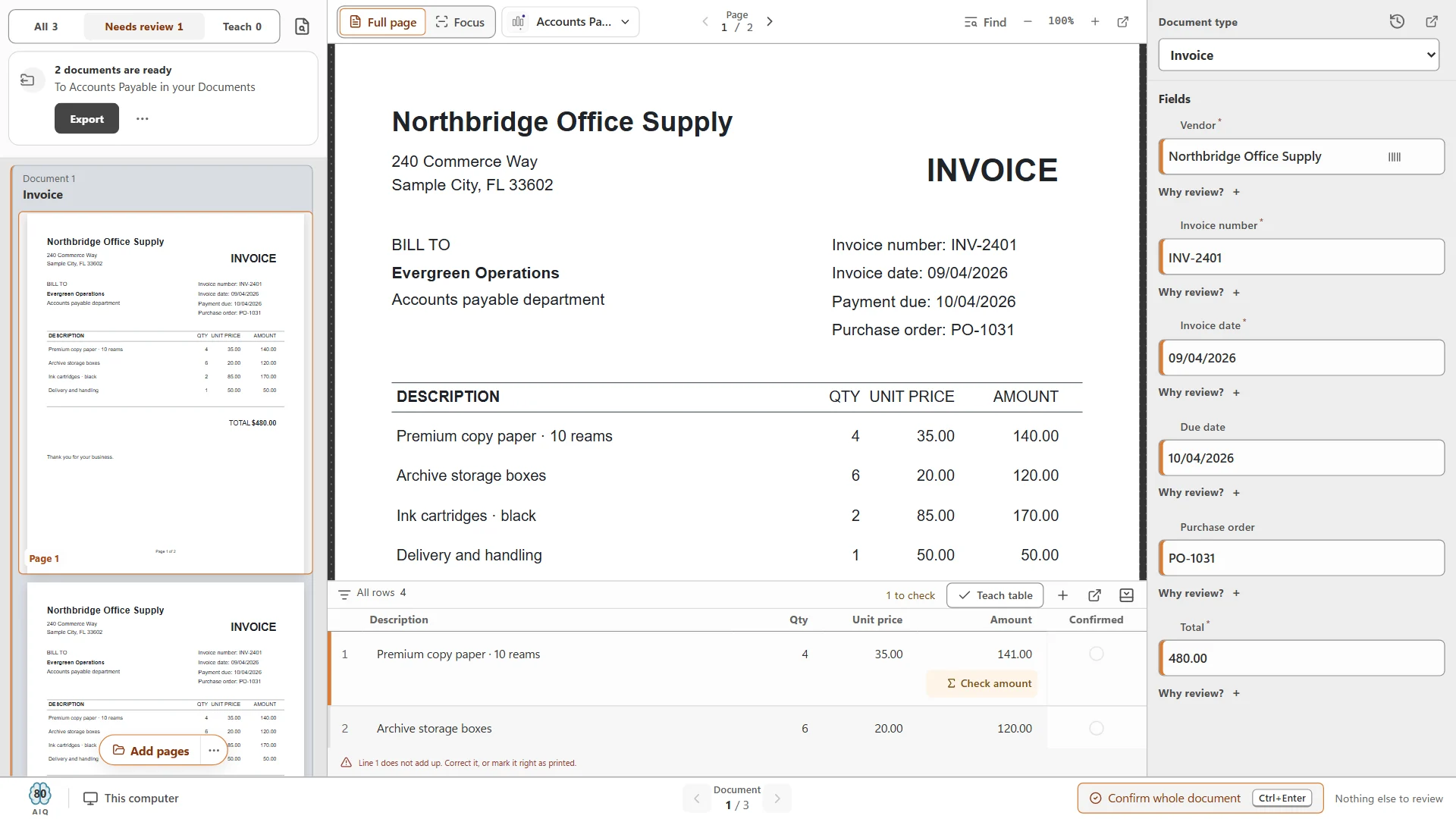
On the sample invoice from Northbridge Office Supply, that is the vendor, invoice number INV-2401, invoice date, due date, purchase order PO-1031 and the total of 480.00, plus subtotal and tax where the invoice has them. Each field has a shape (date, money, number, text), so a total that is not a valid amount never passes.
Line items, with the math checked
The table in the middle of the invoice comes out as rows: description, quantity, unit price and amount. CapturePoint 6 checks each line, and when quantity times unit price does not match the amount it stops and says so instead of passing a wrong number on.
Checked against your own lists
Values can be checked and filled from lookup lists you load, such as your vendor list, so a misread vendor name or a vendor you have never paid stands out before anyone posts it.
Review only what needs a person
You set a review threshold per field, and the screen shows the effect before you save: how many current documents would go through and how many would wait. Every waiting document says why, in plain words.
The review screen puts the page, the fields and the line items side by side. Ctrl+Enter confirms the whole invoice. Each confirmation teaches the job, and CapturePoint 6 re-checks what is still waiting, so documents that now pass clear on their own. One click puts them back in review if you would rather look.
Then it files every invoice the same way
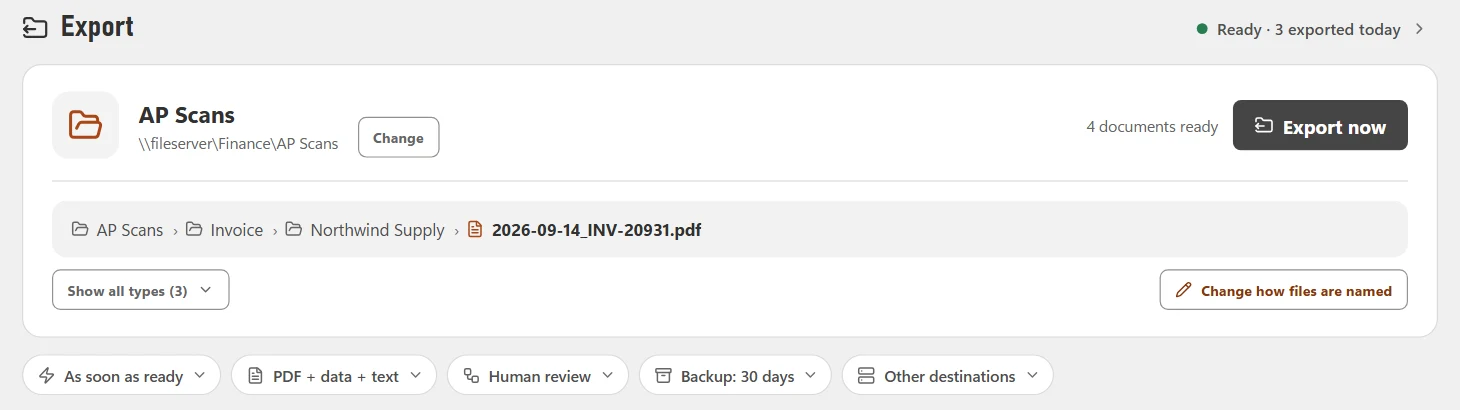
Finished invoices go to a folder with automatic folder and file naming built from the captured values (for example AP Scans, then Invoice, then the vendor, then the date and invoice number), as a searchable PDF (PDF/A optional), a data file with every captured value and a text file. Or they go straight into Content Central. A job can also send each finished PDF to SharePoint or OneDrive (Microsoft 365 work or school accounts), Google Drive, Dropbox or Nucleus One. Export can run as soon as documents are ready, once a day, or only when you say.
See the CapturePoint 6 invoice OCR page for the short version, or the CapturePoint help library for setup steps.
04Approvals in Content Central
Each invoice finds its approver, and comes back approved.
Content Central is our document management system, in the cloud or on your own servers. CapturePoint 6 files invoices into it with their values; a no-code workflow takes it from there.
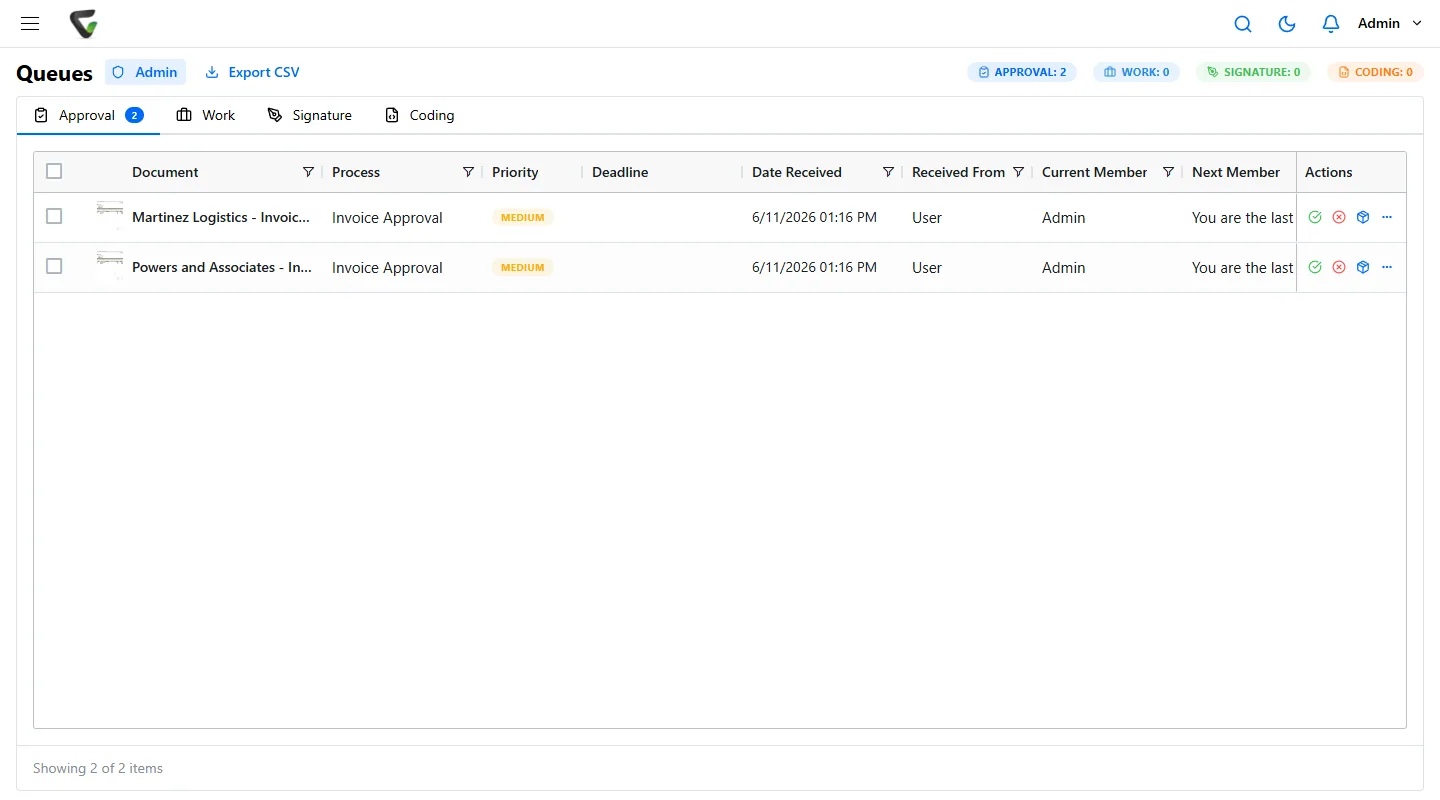
- Route by amount. A workflow rule starts the approval when an invoice is filed: for example one approver under a set amount, two steps above it.
- Look up the vendor. Fill vendor details and terms from your ERP or accounting database the moment an invoice arrives.
- Decide from the email. Approvers can get Approve and Reject links in the arrival email, or work the queue in a browser, on a phone too.
- Nothing stalls. Deadlines per stage, reminders, escalation when an approval has waited too long, and substitutes for people who are out.
- Signed on approval. The final approval can stamp the approver's signature on the invoice and save the signed PDF.
- Into accounting. Approved invoices export as bills to QuickBooks Online, QuickBooks Desktop or Sage 50, or as records to Workday or Epicor, with duplicate detection and an export history.
Every step is on the record: who approved, when, with which note. See approval workflows for how chains, voting groups and escalation work.
05The cloud option
Invoices only arrive as files? Send them to Paige.
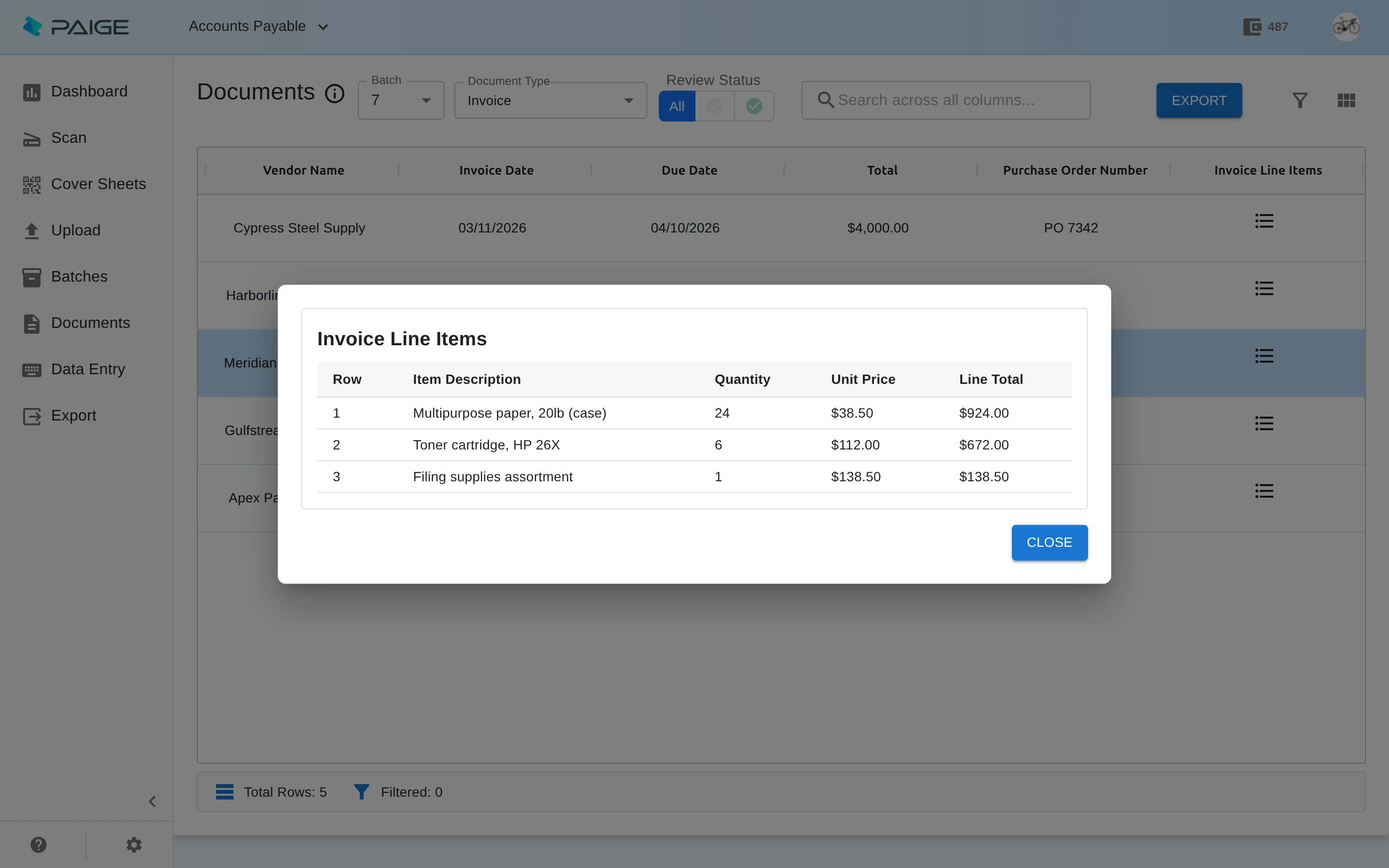
Paige is our cloud service. Send in documents and get clean data back: it learns your invoices from a few samples, splits and sorts what you send, and pulls header fields and line items.
Data comes back by download, SFTP or webhook, which suits teams that want invoices flowing into another system automatically. There is nothing to install, and Paige runs on Google Cloud.
06Which setup fits
Start from how your invoices arrive.
You do not need all three products. Pick the row that sounds like your AP desk.
Paper invoices come in the mail and get scanned in the office
- Start with:
- CapturePoint 6
- Why:
- It drives your TWAIN scanner and reads every document on the same PC. Nothing is uploaded for recognition.
Invoices arrive as PDFs and you want the data delivered into another system
- Start with:
- Paige
- Why:
- Send files in, get clean data back by download, SFTP or webhook. Nothing to install.
You need approvals, signatures and an audit trail, in the cloud or on your own servers
- Start with:
- CapturePoint 6 + Content Central
- Why:
- CapturePoint 6 reads and files into Content Central; Content Central routes, approves and exports to accounting.
Approvals already happen in your accounting system
- Start with:
- CapturePoint 6 to a folder
- Why:
- Each invoice arrives as a searchable PDF plus a data file with every captured value, ready to import.
| If this is you | Start with | Why |
|---|---|---|
| Paper invoices come in the mail and get scanned in the office | CapturePoint 6 | It drives your TWAIN scanner and reads every document on the same PC. Nothing is uploaded for recognition. |
| Invoices arrive as PDFs and you want the data delivered into another system | Paige | Send files in, get clean data back by download, SFTP or webhook. Nothing to install. |
| You need approvals, signatures and an audit trail, in the cloud or on your own servers | CapturePoint 6 + Content Central | CapturePoint 6 reads and files into Content Central; Content Central routes, approves and exports to accounting. |
| Approvals already happen in your accounting system | CapturePoint 6 to a folder | Each invoice arrives as a searchable PDF plus a data file with every captured value, ready to import. |
None of these is a payments system. Payments and three-way matching stay in your accounting system or AP platform; our products feed it clean data and keep the documents and approvals on record.
07Go deeper
Guides for the people setting it up.
Practical, vendor-neutral where it can be, and written for AP leads and the IT person helping them.
Questions AP teams ask
Do I need to build a template for every vendor?
No. Point CapturePoint 6 at a folder of your own invoices and it works out the document types, fields and line-item tables by itself, then learns from every confirmation and correction. Paige learns your invoices from a few samples.
Should I use CapturePoint 6 or Paige?
CapturePoint 6 if you scan paper or want documents read on your own Windows PC. Paige if your invoices already arrive as files and you want the data delivered into another system by download, SFTP or webhook, with nothing to install. Some teams use both.
Does CapturePoint 6 send our invoices to the cloud to read them?
No. Reading and extraction happen locally on the PC, with or without a graphics card. Documents only leave the PC if you choose a destination such as Content Central, SharePoint or OneDrive, Google Drive, Dropbox or Nucleus One.
Which accounting systems can approved invoices go to?
Content Central exports bills to QuickBooks Online, QuickBooks Desktop and Sage 50 (US and Canada), and account-based records to Workday and Epicor, with duplicate detection and an export history. Without Content Central, CapturePoint 6 writes a data file for each document that your accounting system or IT team can import.
Does this replace our AP or payments system?
No. CapturePoint 6 and Paige remove the typing and filing, and Content Central adds approvals and the export to accounting. Payments and three-way matching stay in your accounting system or AP platform.
How do we try it?
Download CapturePoint 6: the free trial starts the first time you open it, with no form, and the 2-minute tour on sample accounts payable documents is ready to take. Or book a free live demo and bring a stack of your own invoices.
What does it cost?
Pricing depends on what you need: scanning stations for CapturePoint 6, users for Content Central and Nucleus One, document volume for Paige, and your servers for Cortexa. Tell us about your setup on the pricing page and we will send pricing that fits, or book a free live demo and we will walk you through it.
Try it on your own invoices
Take the 2-minute tour, then run a folder of your own invoices.
CapturePoint 6 sets itself up from your documents and shows you why anything waits. No sign-up and no credit card.
Priced per scanning station, with unlimited scanning. Get pricing
Free live demo
Bring a stack of real invoices. We will run them for you.
Book a free demo and we will show you around, answer your questions and run your real paperwork through it. No cost, no pressure.
- A live tour of the products that fit your work
- Your own documents, set up and shown working
- Your workflow and process, mapped with you
- Straight answers from people who build it