Document management
File it once. Find it by anything you remember about it.
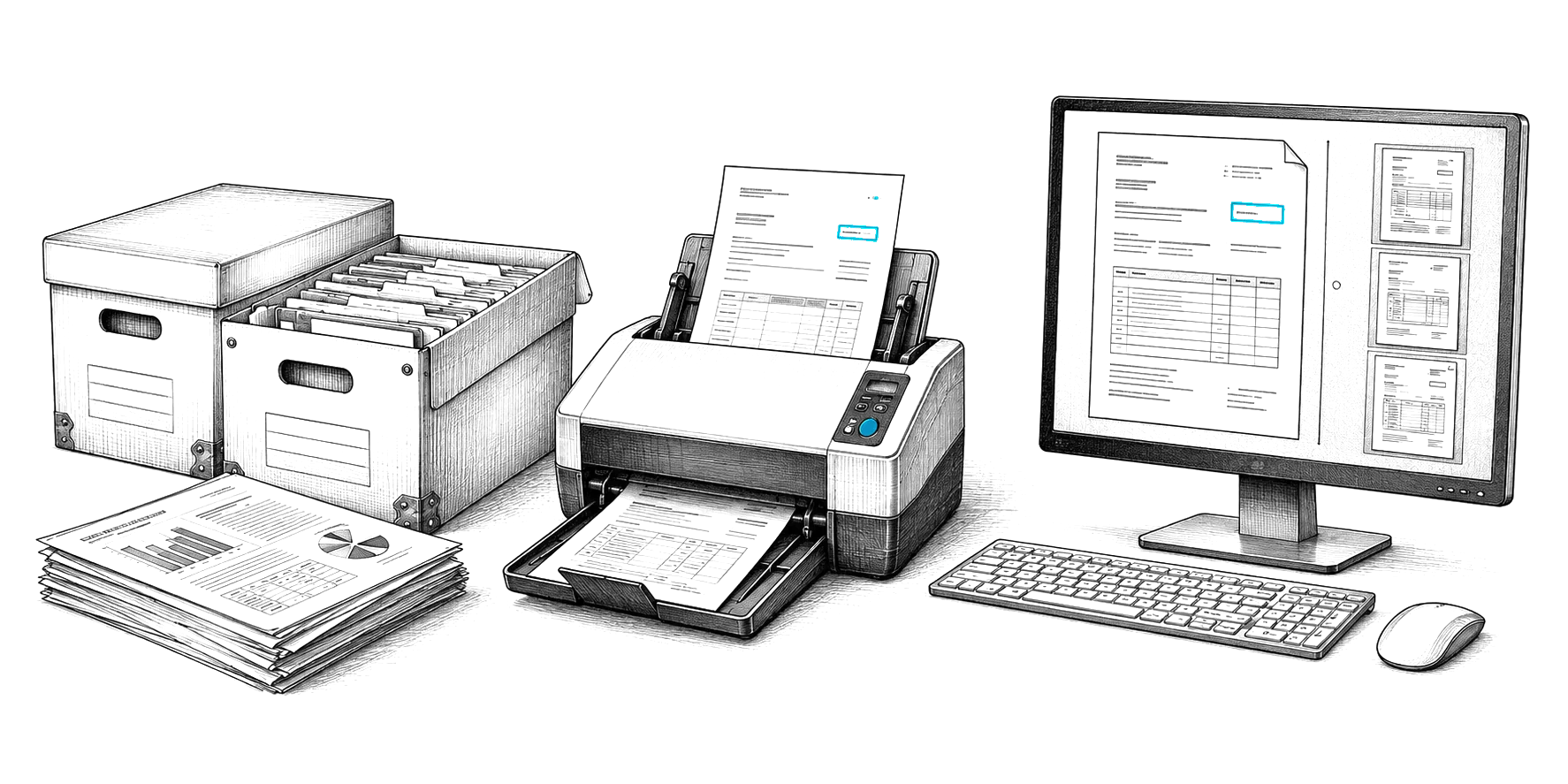
Content Central puts scanned paper, email and electronic files into one library, in the cloud or on your own servers. People find a document by a word inside it or a number they know, and permissions, versions, retention and workflow apply to it without anyone filing by hand.
Nobody remembers where they saved it. They remember what was in it.
Search reads every word on every page and every index field together, so people start from whatever they know.
- A phrase from the pagetemporary injunctionEvery filing with those words in it, scanned or electronic, in the catalogs you are allowed to see. Hits are highlighted on the page.
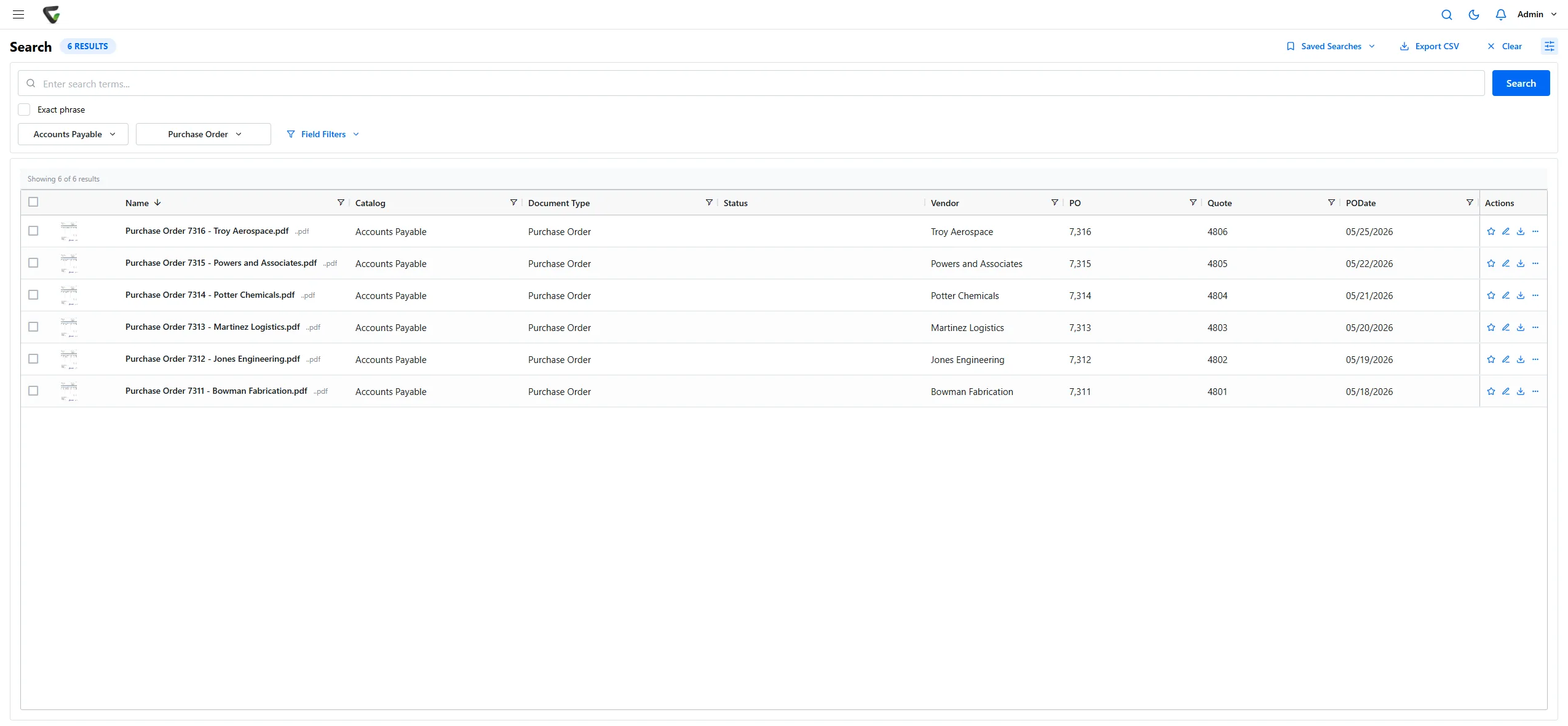
- The PO numberPO = 7312The requisition, quote, purchase order, packing list, invoice and check filed under that PO.
- A vendor and a monthVendor = Potter Chemicals, PO date between 05/01 and 05/31Only the documents that match both, using field filters such as equals, starts with, between and empty.
- The search you run every MondaySaved SearchThe same search in one click, kept private or shared with your team, or opened from another program with a link.
Catalogs, types and fields
Folders that build themselves from what the document is.
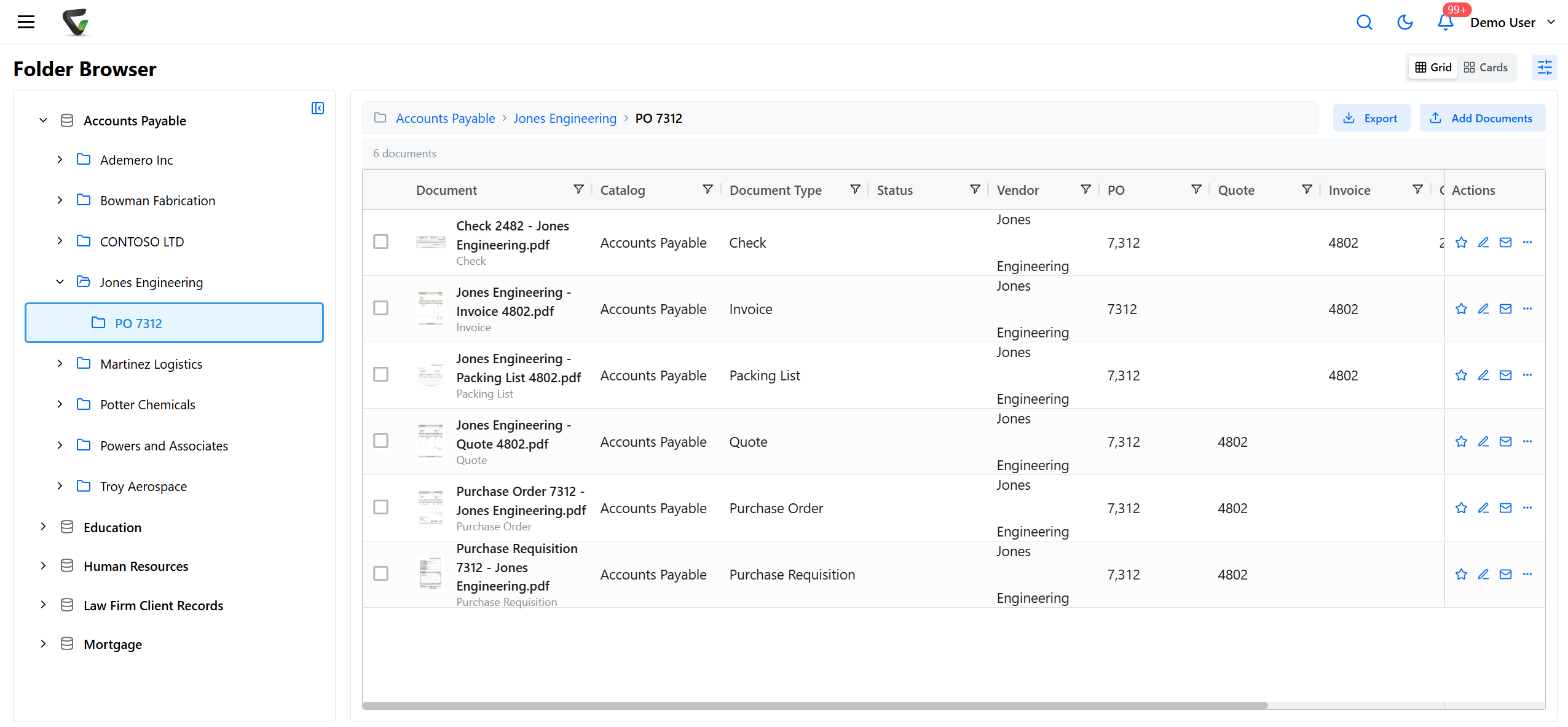
Each department gets a catalog, such as Accounts Payable or HR. Inside it, each kind of document gets a document type with its own index fields: a PO number and vendor for a purchase order, an employee ID for a W-4.
Fields can be required, checked for duplicates, or filled from a drop-down list, including vendors and GL accounts pulled from your accounting system. Folder paths and file names are built from the field values, so a purchase order lands in its vendor and PO folder without anyone choosing where.
Fields shared across types, such as a loan number or student ID, tie related documents together and power packets.
- CatalogAccounts Payable
- Document typePurchase Order
- Index fieldsPO, PO date, Quote, Vendor
- Folder path, built from the fieldsAccounts Payable / Potter Chemicals / PO 7314
After it is filed
Six things every document gets, without anyone remembering to do them.
- 01
Permissions
Who may view, search, add, edit, download, share or delete, set per document type. You can go down to single fields, and limit a branch manager to their own branch.
Document security - 02
Versions
Check a document out and nobody else can overwrite it. Check it in and it becomes the new version, with every earlier one listed in its history.
Version control - 03
Retention and legal holds
A retention period on each document type, a scheduled clearing run, and holds that keep any document past its date.
Records retention - 04
Audit trail
Sign-ins, searches with the words searched, views, downloads, emails and deletes, with who and when, in the Event Viewer.
Audit trails - 05
Workflow and approvals
Plain "when this happens, do that" rules: start an approval when an invoice arrives, remind an owner before a contract expires.
Workflow automation - 06
Packets and signatures
Group every document for one loan, student or employee and see what is missing. Ask anyone with an email address to sign.
Document packets
Need to show an auditor all of this at once? Start at compliance.
Six ways in, so nothing waits on someone to retype it.
- Scan from the browser
- DirectScan drives the scanner on your desk from the web page, with resolution, duplex and page size settings.
- Barcode separator sheets
- Put a QCard between documents and one stack becomes many filed documents, each with its type and fields.
- Watched folders
- Files dropped in a folder are picked up, split, read and filed in the background.
- A mailbox on Microsoft 365, Gmail or any IMAP server, with sender, subject and date filled in from the message.
- Word, Excel and Outlook
- A Content Central ribbon in Office and Outlook files the document or email you have open.
- Fillable forms
- A fillable PDF that files itself, with its answers as the index fields.
Anything that arrives without its fields waits in the Coding Queue for someone to finish it, so incomplete documents never vanish into the library.
Scanning a lot of paper?
CapturePoint 6 does the sorting before it reaches the library.
Scan a mixed stack. CapturePoint 6 finds where each document starts, recognizes what it is, reads its fields on the PC next to the scanner and sends finished, searchable PDFs into Content Central with the fields filled in.
Cloud or on-premises, your choice. The same library in a browser.
On your own servers
Install Content Central on Windows Server with IIS and SQL Server, inside your network, under your backups and your IT team's rules.
On-premises document management, explainedIn the cloud
Use Content Central as a cloud service, with no servers for your team to run. Your people get the same search, permissions, versions, retention and workflow.
Either way, people use it in a web browser: search, view, scan, approve, sign and administer. On a phone, approval queues switch to cards with approve and reject buttons.
It connects to the systems around it: exports to QuickBooks Online and Desktop, Sage 50, Sage X3, Workday and Epicor, lookups from any ODBC database, and API connections for delivering and finding documents. Integrations
Ademero has built document management since 2002, for 1,000+ organizations.
Comparing systems
Seven questions to ask any vendor, us included.
- 1.Can I find a scanned page by a word inside it, not only by its file name?
- 2.Can I limit a group to some document types, and hide single fields such as a Social Security number?
- 3.When two people edit the same file, what stops one overwriting the other?
- 4.Where do I set how long each kind of record is kept, and how do I stop the clock for a lawsuit?
- 5.Can I see who opened a document last Tuesday, and what they searched for?
- 6.Does it run on our servers, in your cloud, or both? Who holds the backups?
- 7.How do we get everything out again if we leave?
Questions people ask first
Can it search scanned paper?
Yes. Content Central reads scanned pages with OCR as they are filed and indexes every word, so a search finds text inside a scan as well as inside Word or PDF files. Documents filed before you turned that on can be made searchable later.
Does it run on our servers or in the cloud?
Your choice. Use Content Central in the cloud, or install it on your own Windows servers with SQL Server so documents stay inside your network. People use it in a web browser either way. CapturePoint 6 reads pages on the scanning PC itself.
Where does AI come in?
Search is full-text and field search, which finds a document by a word or a number. For AI, Content Central connects to the Cortexa AI suite, our private AI platform, so AI can work inside your document processes: reading and deciding on documents, looking up and filling in data, routing work to the right people and moving information between your systems. Your team gets a private AI chat, and our team sets it up and builds custom AI tools around how you work.
Can we bring in what we already have?
Yes. Existing files and folders can be imported in bulk, and old scans can be made searchable. CapturePoint 6 can also split and name earlier scans in PDF or TIFF.
Can we get our documents back out?
Yes. Documents and their index data can be exported in full, and search results export to CSV or Excel.
Free live demo
Bring a drawer of files you search through every week. We will file it and find it, live.
Book a free demo and we will show you around, answer your questions and run your real paperwork through it. No cost, no pressure.
- A live tour of the products that fit your work
- Your own documents, set up and shown working
- Your workflow and process, mapped with you
- Straight answers from people who build it