Document security
Payroll sees the W-4. Managers never do.
Content Central decides who may see and do what, one layer at a time: who can sign in, what each group may do with each kind of document, which fields a reviewer may change, and which branch's records a person sees at all.
One screen per document type. One row per group.
Permissions are set on each document type, for groups or single users, with extra rights for whoever added the document if you want them.
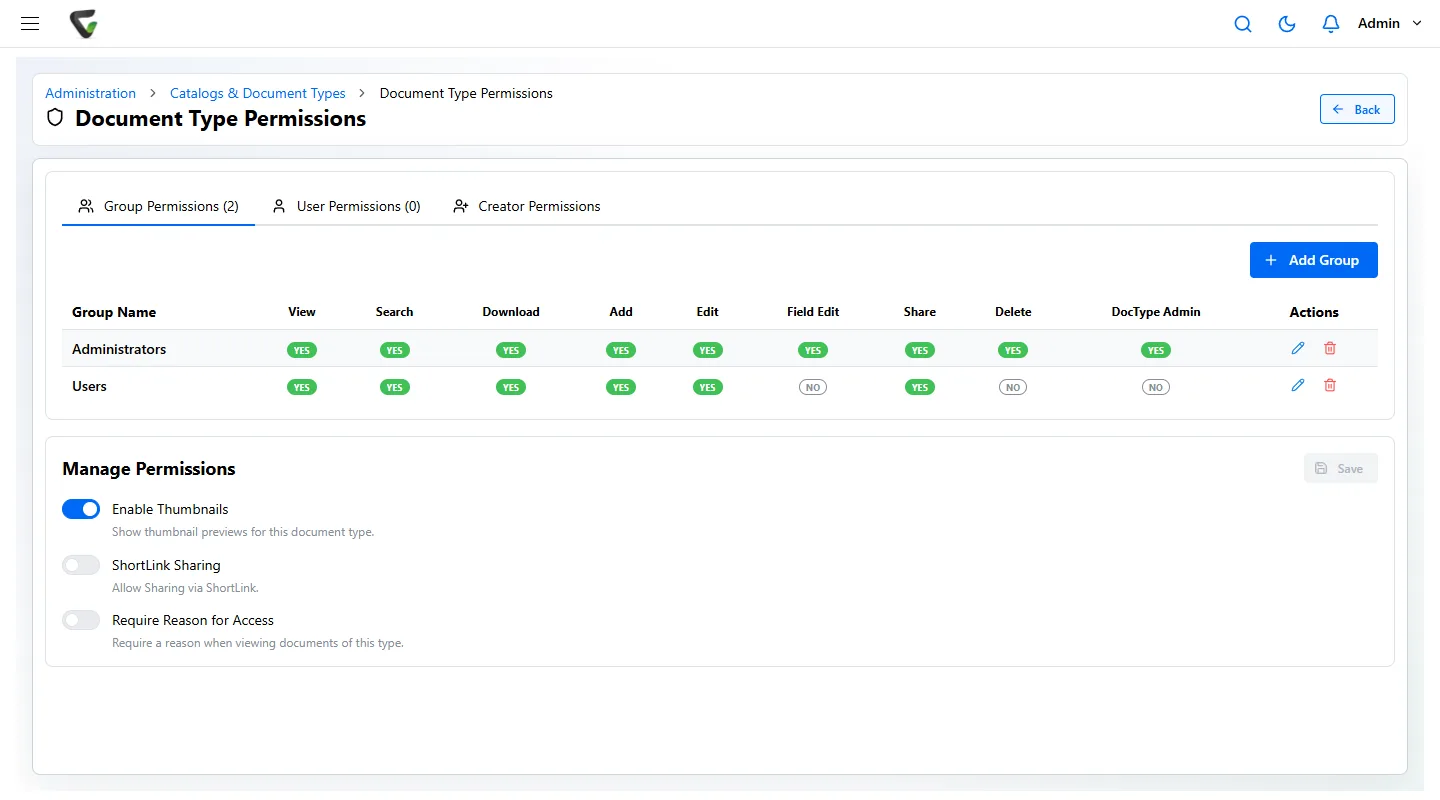
- View, Search
- Whether the group can open documents of this type, and whether they show up in its searches.
- Download
- Reading on screen is one right; taking a copy away is another.
- Add, Edit
- Filing new documents of this type, and changing the ones already filed.
- Field Edit
- Changing index fields, separately from changing the document itself.
- Share, Delete
- Sending a document to someone outside, and removing it.
- DocType Admin
- Managing the document type: its fields, workflow and permissions.
Worked example
One HR catalog, three groups, four kinds of record.
| Document type | HR staff | Managers | Payroll |
|---|---|---|---|
| W-4 and direct deposit forms | View, add, edit | No access | View, download |
| Form I-9 | View, add, edit | No access | No access |
| Performance reviews | View, edit | View, own department only | No access |
| Medical leave paperwork | View, with a stated reason | No access | No access |
"Own department only"
Each manager's account carries a department value. With a field set to limit access by user, a manager sees reviews whose Department field matches theirs, and nothing else.
Limit access by field value"With a stated reason"
With Require Reason for Access on, Content Central asks why before it opens the document, and keeps the answer in the document's history.
Where reasons show up in the audit trailSigning in: the accounts you have, plus a code.
Active Directory
People sign in with the Windows account they already use. Each person is linked to their account once; groups are not synced automatically.
SAML single sign-on
Sign in through your identity provider, for example Okta, Microsoft Entra ID or ADFS. The user must exist in Content Central first.
Local accounts
For people outside your directory, with a password policy: minimum length, expiry, lockout after failed tries, self-service reset and sign-out after inactivity.
Multi-factor authentication
A stolen password is not enough.
- Each person adds Content Central to an authenticator app and enters its code when signing in.
- They get 8 one-time recovery codes in case the phone is lost.
- Admins can require MFA for every user and reset it for someone who is locked out.
When a document has to leave.
By email
Send documents as password-protected, AES-encrypted ZIP files. An admin can make that the rule for every attachment. Each email is logged with its recipients.
By link
Link sharing is a switch per document type and uses an unguessable link. Leave it off for the types that should never be passed around.
To another system
API connections use keys limited to chosen catalogs, with an expiry date, and can be revoked at any time. Only a system admin who signed in recently can create one.
For the administrator
Eight settings to make before the first document goes in.
- 1Turn on Require MFA for all users, and keep the admin recovery steps written down.
- 2Connect Active Directory or SAML so people use the sign-in they already have.
- 3Build permissions from groups, not from individual people. Rights add up, so start from nothing.
- 4Give each department its own catalog and its own catalog admin.
- 5Turn off Download on the types people only need to read.
- 6Turn on Require Reason for Access for medical, personnel and other sensitive types.
- 7Use a field value to limit branch, department or school staff to their own documents.
- 8Force password-protected ZIP on emailed attachments if documents leave by email.
This page covers the controls inside Content Central, whether you use it in the cloud or on your own servers. For how Ademero handles security as a company, and our Business Associate Agreement, see the security page. Fortune 500 companies and government agencies review Ademero's security every year.
Free live demo
Tell us who should see what. We will set it up on your documents while you watch.
Book a free demo and we will show you around, answer your questions and run your real paperwork through it. No cost, no pressure.
- A live tour of the products that fit your work
- Your own documents, set up and shown working
- Your workflow and process, mapped with you
- Straight answers from people who build it