Content Central approval workflows
Approvals that keep moving and come back signed.
Each approver sees only what needs their decision, says yes or no in a click or straight from the email, and the document moves to the next stage. Deadlines and escalation stop it stalling, and the final approval stamps the approver's signature on the page.
In the cloud or on your own servers. Works for invoices, purchase requisitions, contracts, policies and any other document type.
01How an approval process works
An ordered list of people and groups, set up once per process.
An approval process is a list of members in the order they decide. A member is a named user, a group, or whoever added the document. Drag to reorder, and use the Start column to choose where routing begins.
Three ways a group can work
- Multi: everyone in the group gets a vote, and a voting rule decides when it moves on.
- Single: the person sending it picks one member of the group to decide.
- Review: a peer review inside the group.
Built for more than one document at a time
A whole packet, such as every document for one loan or one vendor purchase, can go through approval as a single item. Reviewers see every document in it, and they all advance or go back together.
Approval process groups can also start several chains at once, so legal and finance review the same contract in parallel.
Four ways an approval starts
02Group voting rules
Decide how many yeses a group needs.
For a Multi group, the approval requirement sets when the document moves on. A separate rejection requirement sets how many noes send it back.
Any one member approves
More than half approve
A number you set, here 2
Every member approves
A five-person group under each voting rule. Filled badges are the approvals needed before the document moves to the next stage.
Use Single user when any one person on a team can sign off, such as a shared AP inbox. Majority and Specified number suit committees, where you want agreement without waiting for the one person who is out. Save All users for documents where every voice counts, such as a policy that each department head must accept.
03Deadlines and escalation
Nothing sits in a queue forever.
Deadlines
Set a deadline for the whole process, for each member, or divided among the members. When one passes, Deadline Messaging tells the member and the administrators you choose.
Escalation
Workflow rules watch approvals too: time on a process or a stage, how many items are waiting, and every approval, rejection and completion. The help library's escalation recipe checks every hour for a stage that has waited 3 days, raises the item's priority and emails the approver's manager, at most once a day.
04For the approver
Decide from the email, the queue or a phone.
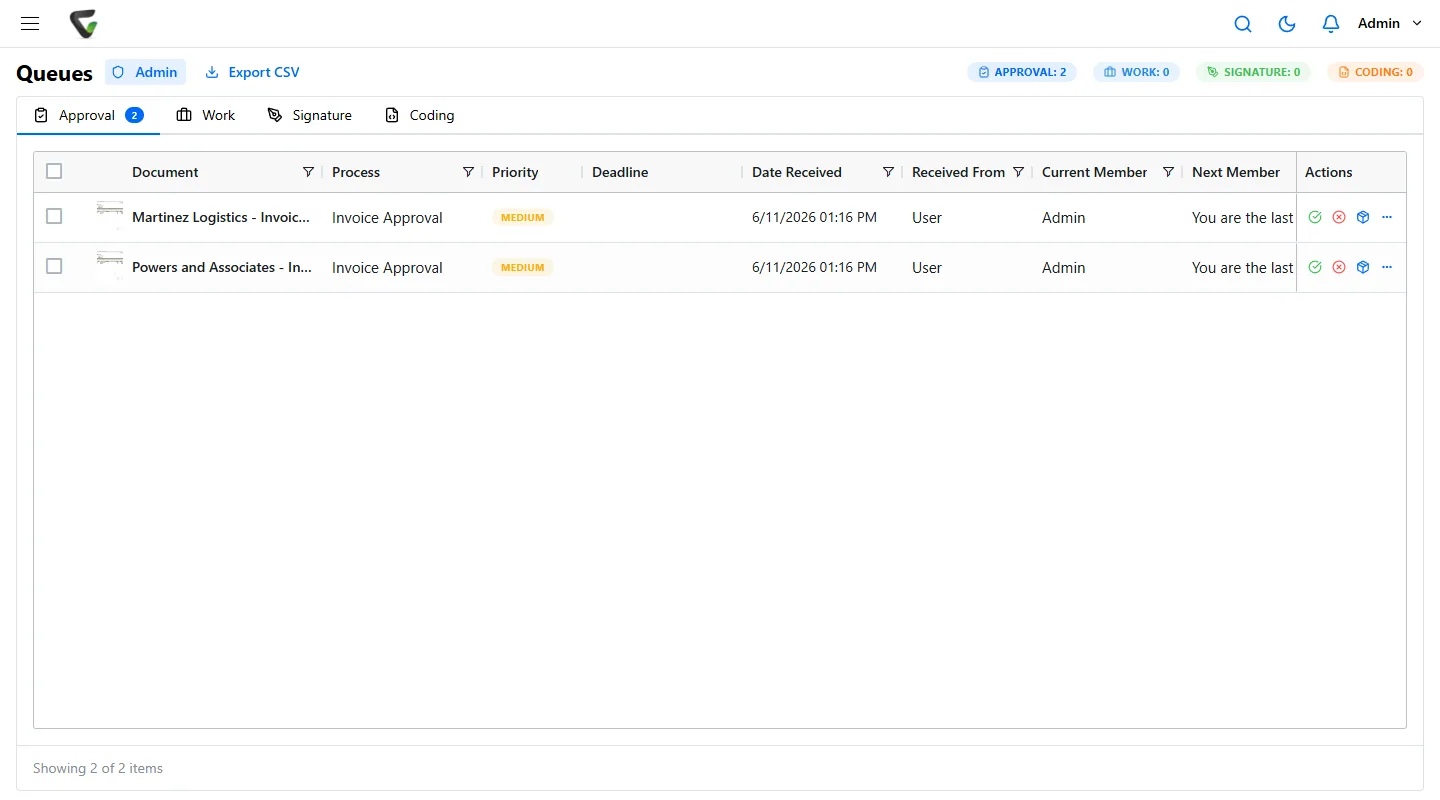
Approvers do not need to learn the system. They need to see what is waiting, read it, and decide.
- Approve or reject from the email. Arrival notifications can include Approve and Reject links, and can attach the document itself.
- PIN to approve. Turn on Require PIN for Approval and each approval is confirmed with a PIN and logged as approved with PIN. A PIN, never a password.
- Bulk approve or reject. Select several items in the Approval Queue and decide them together.
- Substitutes. Name a substitute for the dates you are away, and approvals keep moving.
- On a phone. In a phone browser the queue becomes cards with approve and reject buttons.
- For administrators. The Admin Queue shows every user's items with their history.
05Control and record
Each stage changes only what it should, and every decision is kept.
06Sign on approval
The approval and the signature are the same click.
Attach a Signature Definition to any stage or to the final approval, and mark where the signature goes. When that member approves, their saved signature is stamped at that spot. Content Central creates the signed PDF and stores it as a new version without anyone printing, signing or rescanning.
A definition can place a full signature, initials, a printed name filled from a field, and a date filled in automatically. Each person saves their signature, initials, printed name and font once and reuses them on every approval.
For a capture form that will be signed, choose Rebuild until signed so later field edits never overwrite the signature.
Need a signature from someone outside the approval, such as a vendor or a new hire? Send a signature request to any email address instead. How electronic signatures work
07After the final yes
Approved documents finish their own paperwork.
Approval movement is a workflow trigger, so the last approval can set off whatever comes next.
- Export the bill to QuickBooks Online or Desktop, Sage 50, Workday or Epicor, with duplicate detection and an export status field.
- Move the document to its final folder, update a status field, or stamp the approval date.
- Email the requester, or drop the file and its data into a folder another system watches.
See the full set of triggers and actions in workflow automation, or the step-by-step guide to exporting approved invoices to accounting.
08Set one up
A checklist for your first approval process.
- 01
Pick one document type.
Invoices or purchase requisitions are good first choices: frequent, easy to measure, and everyone knows who should approve them.
- 02
List the members in order.
Named users for one-person steps, groups for teams. Decide each group’s voting rule and how many rejections send it back.
- 03
Decide how it starts.
On capture for every document, or from a workflow rule when the path depends on a field such as the amount. Not both, or it routes twice.
- 04
Set deadlines and one escalation.
A deadline per member plus a rule that raises priority after a few days catches almost everything that stalls.
- 05
Lock the fields.
Use per-stage field permissions so each stage can change only what it owns.
- 06
Add the signature last.
Attach a signature definition to the final stage once the routing works the way you want.
Step-by-step guides in the help library
09Questions
What buyers ask about approvals.
Can approvers decide straight from the email?
Yes. Turn on Approve and Reject links in the arrival notification and the approver can decide from the message. If your system requires a PIN for approval, approvals are confirmed with a PIN, never a password.
What happens when an approver is on vacation?
Each user can name substitutes for a date range, so items keep moving while they are away. Deadlines and escalation rules catch anything that still stalls, and admins can see every queue in the Admin Queue.
Can different invoices follow different approval paths?
Yes. A workflow rule can start a different approval process based on a field such as the amount, the vendor or the department. Several approval chains can also start together, for example legal and finance reviewing the same contract in parallel.
How does the signature get onto the document?
Attach a signature definition to a stage or to the final approval. When that member approves, their saved signature, initials, printed name or date is stamped at the set spot, and the signed PDF is saved as a new version automatically.
Can we approve on a phone?
Yes, in the browser. On a phone the approval queue switches to cards with approve and reject buttons. There is no separate app to install.
Is there a cloud option?
Content Central runs in the cloud or on your own servers, your choice. If your team wants a lighter cloud app for tasks, forms and client portals, Nucleus One has its own approvals and e-signatures.
What does Content Central cost?
Content Central is quoted for your users and setup. Tell us about your setup on the pricing page and we will send pricing that fits, or book a free live demo and we will walk you through it.
Free live demo
Bring an approval that always gets stuck. We will show it moving.
Book a free demo and we will show you around, answer your questions and run your real paperwork through it. No cost, no pressure.
- A live tour of the products that fit your work
- Your own documents, set up and shown working
- Your workflow and process, mapped with you
- Straight answers from people who build it