Free migration estimator
How long will it take to scan the boxes?
The paper
The values filled in are examples. The best numbers come from timing one real box end to end.
Count one box, or weigh it against a ream.
Two sides means twice the images to check, and twice through a scanner that does one side at a time.
Staples, clips, sticky notes, folds and torn pages.
The scanning
From your scanner's specs.
Rated speed assumes a full tray of clean paper. Reloading, jams and double feeds add to it.
Skewed, folded or unreadable pages.
Looking for blanks, cut-off edges and missing pages.
Naming and indexing
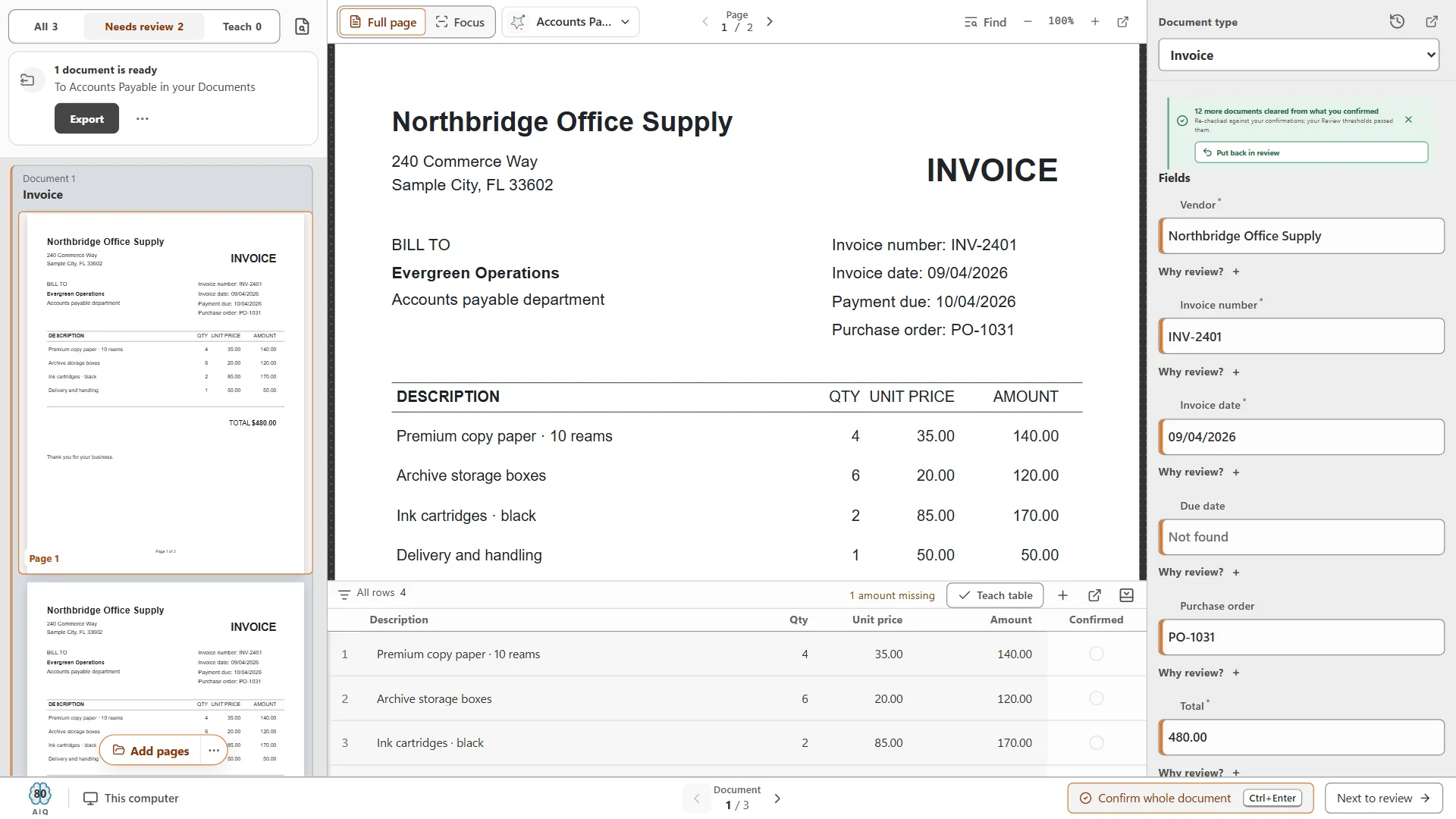
CapturePoint 6 splits the stack, works out each document and reads its details. A person checks only the share it sends to review; on an archive with many kinds of document that share starts higher, so try a few numbers.
The team
Each with a scanner when they need one.
Your estimate
Paper
100,000 sheets
100,000 images, 10,000 documents
Staff time
117 hours
- Prep30 h
- Scanning, reloads and rescans56 h
- Checking images28 h
- Naming and indexing3 h
Working days
20
1 person at 6 hours a day; about 1 month at 21 working days a month
Not counted: moving boxes, putting paper back or destroying it after scanning, and moving files that are already digital. Every figure comes from the numbers you enter; it is an estimate, not a quote.
Before you start
Four things that make the estimate hold up.
- 01
Time one real box
Prep, scan, check and index one typical box from start to finish. Put those times in the estimator; they beat any rule of thumb.
- 02
Decide what not to scan
Records past their retention period can be destroyed instead of scanned. Check them against a retention schedule first.
- 03
Check the backs
If the backs of pages are blank, scan one side. Two sides doubles the images to check.
- 04
Everyday documents first
Scan what people use this week. The archive can follow in the background, so nobody waits for it.
Sends it where you work
Your documents land right where your team already looks.
Reading happens on your PC. Every finished document is then named and filed as a searchable PDF in your own folders or Content Central, and can also go to SharePoint or OneDrive, Google Drive, Dropbox or Nucleus One.

 SharePoint and OneDrive
 Google Drive
 Dropbox

- Your own folders
SharePoint and OneDrive need a Microsoft 365 work or school account. Need another system? Tell us where your documents need to go.
Questions about scanning projects
Can we scan the backlog ourselves?
Yes. CapturePoint 6 runs on your own PC with the scanner you already have, so your team can work through the boxes alongside normal work. If you want to talk through who does what, book a free live demo and bring your numbers.
Why is this slower than my scanner speed suggests?
Rated speed is a full tray of clean paper with nothing else happening. Real boxes need prep, reloading, clearing jams, rescanning bad pages, checking the images and naming the documents. The estimator counts each one so the total holds up.
What does scanning software cost for a backlog project?
CapturePoint 6 is priced per scanning station, with unlimited scanning. Tell us about your setup on the pricing page and we will send pricing that fits, or book a free live demo and we will walk you through it.
Do we need new scanners?
No. CapturePoint 6 works with the TWAIN scanner you already have and also reads PDF and image files you drop in.
Where do the scanned documents go?
Wherever you work: Content Central, Nucleus One, SharePoint, OneDrive, Google Drive, Dropbox or your own folders.
CapturePoint 6 free trial
Start scanning the backlog today.
CapturePoint 6 is cutting-edge local AI on your own PC. It splits, sorts, reads and names every document, then files it to SharePoint, OneDrive, Google Drive, Dropbox, folders, Content Central or Nucleus One. The free trial starts the first time you open it, with no form.