Checklist · Accounts payable
AP document capture: a setup checklist
Everything to decide before the first invoice goes through the scanner: intake, scanner settings, separation, fields, exceptions, naming, where documents go, who does what, and how to roll it out without a bad month.
For the AP lead or office manager setting up invoice scanning and capture, and the IT admin helping them. Work through it in order; most sections take a short conversation, not a project.
Most capture projects that disappoint do not fail on the software. They fail on decisions nobody made: which mailbox invoices go to, what happens when the total is unreadable, what the files are called, who checks the exceptions on Friday. This checklist makes those decisions explicit. Tick them off and write the answers down; the written answers become your process document.
1. Before you start
List every way AP documents arrive today
Postal mail, a shared AP email address, individual inboxes, vendor portals, documents handed in by other departments.Count a normal week and a busy week
Pages, not just invoices. Month-end and year-end volumes decide scanner and staffing needs.List the document types that come with invoices
Typically credit memos, statements, purchase orders, remittance advice and W-9s. Decide which ones you capture and which you only file.Write down what happens to an invoice today, step by step
Who opens it, who codes it, who approves it, where the paper ends up. You are replacing the typing and filing, not the approvals.Agree what “done” means for one invoice
For example: data in the accounting system, PDF filed under the vendor, original paper in a dated box for a set period.
2. Intake: one front door per channel
Give paper one landing spot
A tray by the scanner. Date-stamp on arrival if your process relies on received dates.Ask vendors to email one shared AP address
Not a person’s inbox. Save attachments from that mailbox into a single intake folder each day, or upload them to your capture service.Decide who empties each channel, and how often
Daily is the usual answer. A channel without an owner becomes a pile.Keep non-AP mail out of the AP stack
Marketing mail and checks should be pulled before scanning. Capture software can classify documents, but it should not be your mail sorter.
3. Scanner settings
Set these once, save them as the scanner profile for AP, and do not let them drift.
Resolution
- Recommended:
- 300 dpi
- Why:
- The usual sweet spot for text recognition. Lower loses small print; higher makes larger files without reading better.
Color mode
- Recommended:
- Black and white for plain invoices; grayscale or color when color carries meaning
- Why:
- Stamps, highlighted totals and colored logos can matter. Color files are much larger.
Sides
- Recommended:
- Double-sided (duplex)
- Why:
- Terms and remit-to details are often printed on the back.
Blank pages
- Recommended:
- Remove or ignore
- Why:
- Blank backs of single-sided pages add review noise.
Paper handling
- Recommended:
- Unstaple, unfold, flatten curled pages
- Why:
- Most misfeeds and skewed pages start here.
File type
- Recommended:
- Let the capture software produce the PDF
- Why:
- It can make one searchable PDF per document after separation, instead of one big scan.
| Setting | Recommended | Why |
|---|---|---|
| Resolution | 300 dpi | The usual sweet spot for text recognition. Lower loses small print; higher makes larger files without reading better. |
| Color mode | Black and white for plain invoices; grayscale or color when color carries meaning | Stamps, highlighted totals and colored logos can matter. Color files are much larger. |
| Sides | Double-sided (duplex) | Terms and remit-to details are often printed on the back. |
| Blank pages | Remove or ignore | Blank backs of single-sided pages add review noise. |
| Paper handling | Unstaple, unfold, flatten curled pages | Most misfeeds and skewed pages start here. |
| File type | Let the capture software produce the PDF | It can make one searchable PDF per document after separation, instead of one big scan. |
CapturePoint 6 asks TWAIN scanners for 300 dpi and double-sided scanning where the scanner supports it, so most scanners start in a sensible place. Test thermal paper, carbon copies and small receipts on your scanner before go-live; they are the usual troublemakers. For more on file types, see searchable PDF vs PDF/A.
4. Separating documents
A scanner produces a stream of pages. Something has to decide where one invoice ends and the next begins. You have four practical choices:
One document per scan
- How it works:
- Scan each invoice on its own.
- Good for:
- Very low volume.
- Watch out for:
- Slow, and easy to forget a page.
Separator sheets
- How it works:
- A printed sheet goes in front of each document.
- Good for:
- Mixed stacks where you want certainty.
- Watch out for:
- Printing and reusing sheets; forgetting one merges two invoices.
Barcodes
- How it works:
- A barcode on the document or a sticker marks each start.
- Good for:
- Documents that already carry a barcode.
- Watch out for:
- Labels cost time if you have to add them.
Automatic
- How it works:
- The software decides from the content which pages belong together.
- Good for:
- Most AP stacks, once tested on yours.
- Watch out for:
- Check multi-page invoices and statements in your pilot.
| Method | How it works | Good for | Watch out for |
|---|---|---|---|
| One document per scan | Scan each invoice on its own. | Very low volume. | Slow, and easy to forget a page. |
| Separator sheets | A printed sheet goes in front of each document. | Mixed stacks where you want certainty. | Printing and reusing sheets; forgetting one merges two invoices. |
| Barcodes | A barcode on the document or a sticker marks each start. | Documents that already carry a barcode. | Labels cost time if you have to add them. |
| Automatic | The software decides from the content which pages belong together. | Most AP stacks, once tested on yours. | Check multi-page invoices and statements in your pilot. |
CapturePoint 6 covers the last three in one setting: automatically, at matching barcodes, automatic plus matching barcodes, or only at its separator sheets (which work with every option and can be printed from the app).
5. Document types and fields
Pick the fields per document type, and keep the list short
For invoices: vendor, invoice number, invoice date, due date, PO number, total, and line items only if you use them. The invoice OCR guide explains each one.Mark required fields
A missing required field always goes to review. Usually vendor, invoice number, date and total.Set the shape of each field
Date, money, number or text. A total that is not a valid amount should never pass.Load your vendor list
Checking the vendor against your own list catches misreads and new vendors in one step.Decide on line items deliberately
They are valuable and the hardest part to get right. See invoice line item extraction.
6. Exceptions and review
Decide in advance which situations stop an invoice for a person, who that person is, and how quickly they get to it. A sensible starting set:
A required field is missing or below the confidence bar
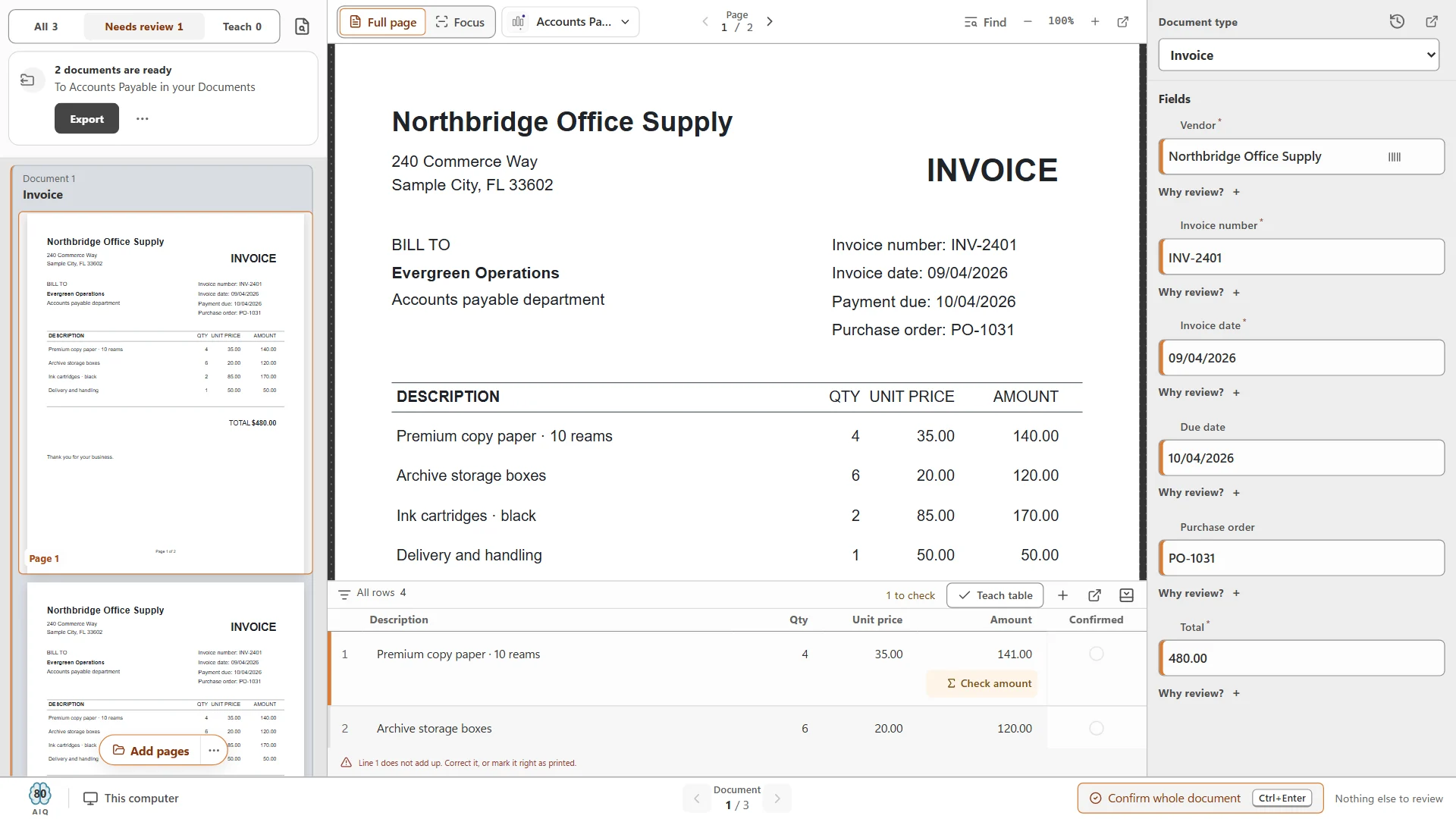
Line items do not add up
Quantity times unit price differs from the line amount.The vendor is not on your vendor list
The invoice number has been seen before for this vendor
Duplicate checks usually live in your accounting system or document system; Content Central can catch duplicates with field checks.The document type is uncertain
A statement treated as an invoice can be paid twice.Someone owns the review queue every working day, with a named backup
7. Naming and filing
Agree on one naming pattern and one folder structure, and let the software apply it. A pattern that works for most AP teams: Document type › Vendor › YYYY-MM-DD_Invoice number.pdf.
Put the date first and in year-month-day order
Files then sort in date order everywhere.Use captured values, not typed ones
Vendor and invoice number come from the extraction, so names match the data.Decide the wording for a missing value
For example “No PO”, so a gap is visible instead of producing a broken name.Keep folders shallow
Two or three levels. Deep trees make people save in the wrong place.Never overwrite
Two files with the same name should both be kept (CapturePoint 6 adds -2, -3).Keep private values such as tax IDs or bank account numbers out of file names
8. Where documents go
Choose the home for the filed PDF
A network folder, a document management system, or a cloud library your team already uses.Choose how the data reaches accounting
An import file, a connector, or a person keying from the review screen. Test it with your accounting system early.Decide when documents leave
As soon as they are ready, once a day, or only when someone presses export.Decide how long to keep the paper and the files
Ask your accountant for your retention periods; our retention schedules are a starting point.
With CapturePoint 6, each document can arrive in a folder as a searchable PDF (optionally PDF/A), a data file with every captured value and a text file; or go into Content Central. A job can also send each finished PDF, with its values embedded, to SharePoint or OneDrive (Microsoft 365 work or school accounts), Google Drive, Dropbox or Nucleus One. A backup copy can be kept on the PC for a period you choose.
9. Roles
Intake
- Does:
- Opens mail, empties the AP mailbox, preps and scans paper.
- Typical person:
- AP clerk or front office
Reviewer
- Does:
- Works the review queue daily; confirms and corrects.
- Typical person:
- AP clerk
Owner
- Does:
- Owns fields, naming, thresholds and the vendor list; signs off changes.
- Typical person:
- AP lead or controller
Admin
- Does:
- Installs and updates the software, scanner drivers, folder permissions, backups.
- Typical person:
- IT or your IT provider
| Role | Does | Typical person |
|---|---|---|
| Intake | Opens mail, empties the AP mailbox, preps and scans paper. | AP clerk or front office |
| Reviewer | Works the review queue daily; confirms and corrects. | AP clerk |
| Owner | Owns fields, naming, thresholds and the vendor list; signs off changes. | AP lead or controller |
| Admin | Installs and updates the software, scanner drivers, folder permissions, backups. | IT or your IT provider |
Name a backup for every role. Capture that stops when one person is on vacation is not a process.
10. Rollout plan
- 01
Try it on sample documents
Learn the screens before your own invoices are involved. CapturePoint 6 includes a ready-made accounts payable sample job. - 02
Build the job from your own documents
A folder of recent invoices from your top vendors plus a handful of oddities. - 03
Pilot with a slice of real work
Two weeks, your top ten vendors or one location. Keep the old process running in parallel. - 04
Measure
How many invoices went through without review, how many waited and why, and any value that was wrong but not flagged. - 05
Adjust, then expand
Tune fields, thresholds and naming. Add vendors and channels in steps. - 06
Write it down
The answers to this checklist, one page, kept next to the scanner.
Common mistakes
- Capturing every field on the page “because we can”, then drowning in review.
- Scanning at the highest resolution in color by default, and running out of space with no accuracy gain.
- Letting each person name files their own way during the pilot.
- No owner for the review queue, so invoices wait and vendors call.
- Judging accuracy on a demo stack instead of your own invoices.
- Going live at month-end.
Want help setting it up? Step-by-step articles are in the CapturePoint help library, and we run free live demos with your own documents.
Related guides
- Invoice OCR: how invoice data extraction worksFields, line items, accuracy, review, local vs cloud, and a buyer checklist.
- Invoice line item extraction: getting the table rightWhy line items are hard, math checks, exception review and multi-page tables.
- Searchable PDF vs PDF/AWhat each one is, and which to use for working files, archives and records.
Try it on your own invoices
Set up AP capture from a folder of your own invoices.
Point CapturePoint 6 at a folder of real AP documents and it works out the document types, fields and tables by itself. Then choose your separation, naming and destination, and run a pilot on your own PC.
Windows 10 and 11 (64-bit). No sign-up and no credit card; sample jobs included. Priced per scanning station, with unlimited scanning. Get pricing
Most of your invoices arrive as PDFs, and you want the data delivered into another system automatically? Paige, our cloud service, returns clean data by download, SFTP or webhook.
Start free with Paige