Pillar guide · Accounts payable
Accounts payable automation: the whole process, step by step
Every step from the envelope to the archive: what software can take over, what still needs a person, the controls that protect you, and how to roll it out one stage at a time.
For controllers, AP managers and CFOs of small and mid-sized organizations who want invoices to stop living in inboxes and on desks.
Accounts payable automation is often sold as one product. In practice it is eight steps, each of which can be automated more or less, and each of which carries a control your auditors care about. Teams that get the most from it treat it as a chain: they automate the steps that are pure handling, keep people where judgment is needed, and make sure every step leaves a record.
This guide walks the chain end to end. The capture step itself has two companion guides of its own.
For the capture step in depth
What AP automation covers
The goal is not "no people in AP". It is that people spend their time on decisions (is this charge right, should we pay it) instead of on handling (opening, typing, filing, forwarding, chasing). The diagram shows the usual split.
The process, step by step
1. Intake
Invoices arrive by mail, by email and as files from vendor systems. The first win is one front door per channel: one AP mailbox instead of invoices sent to whoever the vendor knows, one scanning point for paper.
- Automate
- Reading the AP mailbox and capturing attachments; scanning paper in batches; picking up files dropped by other systems.
- Still a person
- Opening mail and feeding the scanner; deciding what to do with documents that are not invoices.
- Ademero
- Content Central reads mailboxes (Microsoft 365, Gmail or IMAP) and watched folders. CapturePoint 6 scans paper stacks and imports PDF and image files. Paige takes in invoices that arrive as files.
2. Capture
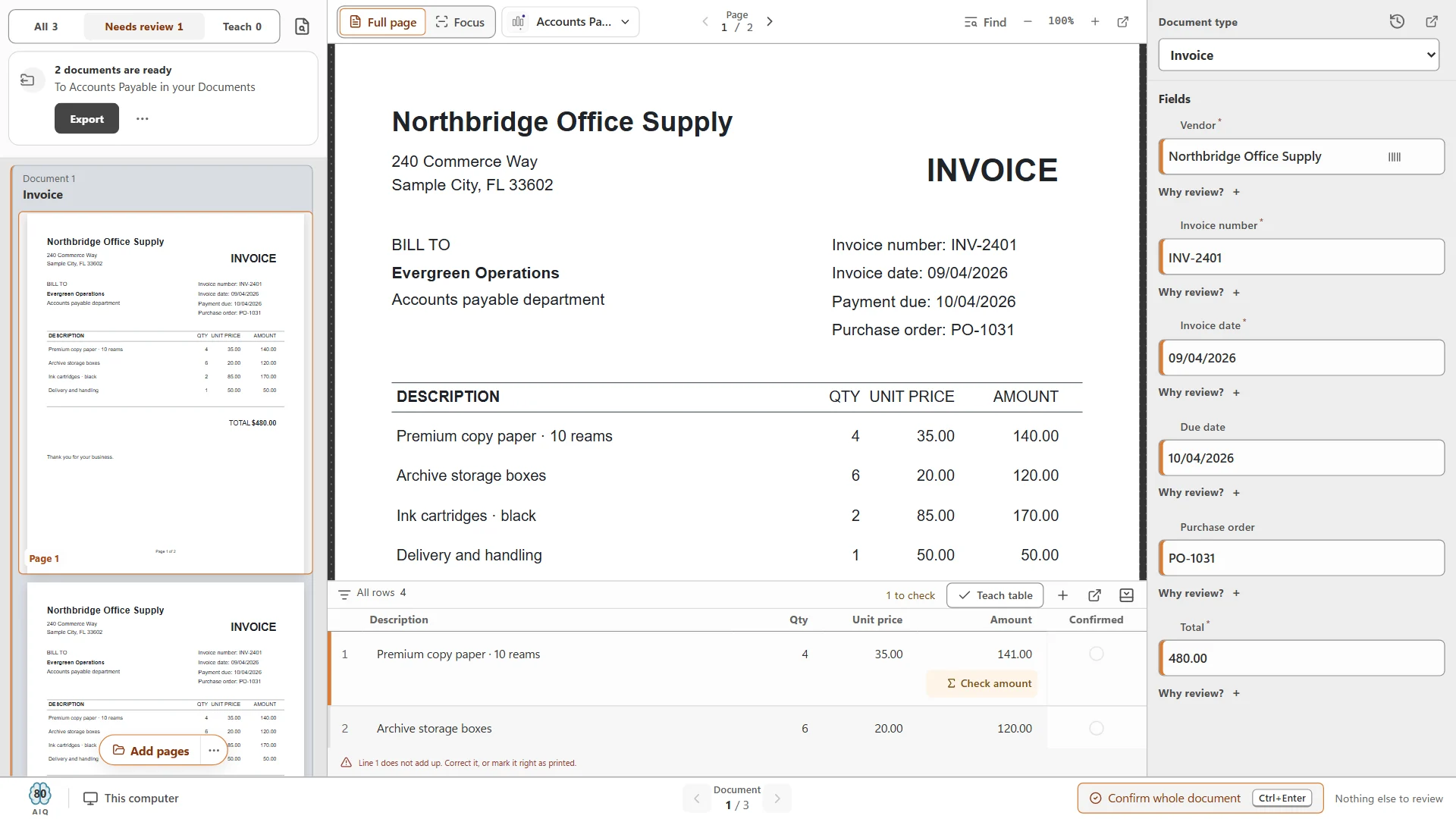
The invoice is split from the stack, read, and turned into data: vendor, invoice number, dates, totals and, if you need them, line items. This is where most typing disappears.
- Automate
- Splitting, recognizing the document type, reading fields and line items, checking the line math, checking the vendor against your list.
- Still a person
- Reviewing what the software flags: missing values, low confidence, totals that do not add up.
- Ademero
- CapturePoint 6 on a Windows PC, reading locally, with a review screen that says why each item waits. Paige in the cloud.
How to judge accuracy and review is covered in the invoice OCR guide.
3. Coding
Each invoice, or each line, is assigned to a general ledger account, and often to a department, job or cost center. Coding is where AP knowledge lives, and where mistakes become misstated reports.
- Automate
- Filling vendor details and payment terms from your systems; offering only valid GL accounts and vendors in drop-down lists; carrying a vendor’s usual coding forward.
- Still a person
- Splitting an invoice across accounts; coding a new vendor; anything unusual.
- Ademero
- Content Central can fill its vendor and GL account lists from the accounting system, and look up vendor details from your ERP database when an invoice arrives.
Help library
4. Matching and checks
Before an invoice is approved, someone checks that it is real, not a duplicate, and for goods or services you actually ordered and received. Where purchase orders exist, that is the classic two-way match (invoice against PO) or three-way match (invoice, PO and receiving document).
- Automate
- Duplicate checks on vendor and invoice number; bringing the PO and receiving documents to the approver; checking that line items add up.
- Still a person
- Resolving mismatches: short shipments, price changes, partial deliveries. Where automatic matching exists, it is typically in the ERP or a dedicated AP platform.
- Ademero
- Content Central warns about duplicate values while documents are indexed. A packet keyed on the PO number keeps the invoice, the PO and the receiving documents together, so the approver sees all of them in one place.
5. Approval
Approval is a decision, so it stays with people. What software removes is the routing, the waiting and the chasing.
- Automate
- Starting the right approval by amount, vendor or department; reminders and escalation; substitutes during absences; recording every decision.
- Still a person
- The decision itself, with a note when it is rejected.
- Ademero
- Content Central approval processes: chains of people or groups, voting rules, deadlines and escalation, approve and reject links in the email, an optional PIN, and an approver’s signature stamped on approval.
Build it
6. Export to accounting
Approved invoice data becomes a bill in the accounting system, without retyping. This is where a capture tool alone stops and a connected system pays for itself.
- Automate
- Creating the bill with header and line detail; skipping duplicates; recording whether each export succeeded.
- Still a person
- Fixing the occasional rejected export (a closed period, an inactive vendor).
- Ademero
- Content Central exports approved invoices to QuickBooks Online, QuickBooks Desktop, Sage 50, Sage X3, Workday and Epicor, with duplicate detection, an export status field and an export history. CapturePoint 6 writes a data file with every captured value; Paige delivers data by SFTP or webhook.
Help library
7. Payment hand-off
The payment run belongs in the accounting system or the bank, where payment permissions and bank controls already live. Automation here is about closing the loop: once an invoice is paid, it should leave every queue and be filed as paid.
- Automate
- Marking the invoice paid, clearing it from queues and moving it to the paid folder.
- Still a person
- Selecting and releasing payments; verifying any change to a vendor’s bank details by calling a known contact.
- Ademero
- A Content Central rule fires when the status field changes to Paid, clears the invoice from work queues and files it.
8. Retention
Invoices must be findable for audits and tax questions, then destroyed on schedule. A good AP system makes the auditor's request ("show me every invoice from this vendor last year, with its approvals") a search, not a project.
- Automate
- Naming and filing each invoice by vendor and number; retention by document type; destruction on schedule.
- Still a person
- Setting the retention policy with your accountant; placing records on hold when litigation or an audit requires it.
- Ademero
- Content Central retention schedules per document type, legal holds (keep a document indefinitely, overriding its schedule), full-text search. CapturePoint 6 files searchable PDFs, optionally PDF/A, in named folders.
Controls to keep (or gain) when you automate
Automation should make controls stronger, because every step is enforced and recorded. Check these three before you go live.
Duplicate invoices
Duplicates arrive as a resent email, a paper copy of an emailed invoice, or a statement mistaken for an invoice. Check in two places: at capture or indexing (vendor plus invoice number), and at export to accounting. Watch for near-duplicates, such as an invoice number with and without a leading zero, and keep statements out of the invoice document type.
Separation of duties
The person who enters an invoice should not be the person who approves it, and neither should be able to release payment alone. In practice:
- Capture and coding staff can edit invoice data, but cannot approve.
- Approvers decide, and their decision is recorded; during approval, only the current approver should be able to change fields.
- Payments are released in the accounting system or bank, under its own permissions.
In Content Central, document-type permissions control who can add, edit and delete invoices, approval settings can let only the active member edit, and field permissions can change from stage to stage.
Audit trail
For any invoice you should be able to show who captured it, what was changed, who approved it and when, and when it was exported. Content Central's event log records logins, views, changes, approvals (including PIN approvals) and emails, and every document keeps its own version history.
Roll it out in stages
Changing every AP step at once is how projects stall. Each stage below delivers value on its own, so you can pause after any of them.
- 01
Stage 1: capture and filing
Scan and read invoices, review the flagged ones, and file every invoice as a named, searchable PDF with a data file. No change for approvers yet. The typing disappears first. - 02
Stage 2: one front door
Move vendors to a single AP mailbox and capture it automatically. Paper keeps going through the scanning station. - 03
Stage 3: approvals
Route invoices for approval by amount or department, with deadlines and escalation. Start with one department and a simple rule; add thresholds once it runs smoothly. - 04
Stage 4: export to accounting
Send approved invoices to your accounting system as bills. Run in parallel with manual entry for a period and compare. - 05
Stage 5: close the loop
Mark paid invoices, clear queues, apply retention schedules, and set up the reports your auditors ask for.
Before each stage, write down how you will know it worked. Useful measures, all of which you can count yourself:
Invoices typed by hand per week
Should fall sharply after stage 1.Days from receipt to approval
The number stage 3 should move.Invoices waiting on someone, and on whom
Visible in the approval queue once stage 3 is live.Duplicates caught before payment
Each one is money that did not leave.Time to answer an auditor’s request
From days of pulling files to a search.
Which Ademero piece does what
Paper and PDF invoices read on your own PC
- Ademero piece:
- CapturePoint 6
- Notes:
- Fields and line items, line-math checks, review with reasons; files to folders, Content Central, SharePoint or OneDrive, Google Drive, Dropbox or Nucleus One.
Invoices that arrive as files, read in the cloud
- Ademero piece:
- Paige
- Notes:
- Learns from a few samples; delivers by download, SFTP or webhook; runs on Google Cloud.
Approvals, exports to accounting, retention and audit
- Ademero piece:
- Content Central
- Notes:
- On your own servers. Exports to QuickBooks Online and Desktop, Sage 50, Sage X3, Workday and Epicor.
| You need | Ademero piece | Notes |
|---|---|---|
| Paper and PDF invoices read on your own PC | CapturePoint 6 | Fields and line items, line-math checks, review with reasons; files to folders, Content Central, SharePoint or OneDrive, Google Drive, Dropbox or Nucleus One. |
| Invoices that arrive as files, read in the cloud | Paige | Learns from a few samples; delivers by download, SFTP or webhook; runs on Google Cloud. |
| Approvals, exports to accounting, retention and audit | Content Central | On your own servers. Exports to QuickBooks Online and Desktop, Sage 50, Sage X3, Workday and Epicor. |
Payments, and automatic PO matching where you need it, stay in your accounting system or a dedicated AP platform; Ademero feeds them clean data and keeps the documents. For approvals and exports, a Content Central demo shows the rules running on invoices like yours.
Questions
What is the difference between invoice OCR and AP automation?
Invoice OCR, or invoice data extraction, turns an invoice into checked data and a filed document. AP automation is the whole process around it: intake, coding, matching, approval, export to accounting, the payment hand-off and retention. Extraction is usually the first stage to automate because it removes the most typing.
Can AP automation pay vendors?
Some platforms include payments; many teams keep the payment run in their accounting system or bank, where payment permissions and bank controls already live. Ademero’s products capture, approve, export and file invoices; the payment itself happens in your accounting system.
Do we need purchase orders to automate AP?
No. Many invoices, such as utilities, subscriptions and services, never have a PO. Those are routed for approval by vendor, department or amount instead of being matched. Where POs exist, keeping the invoice, PO and receiving document together makes the approver’s check fast.
How long does it take to roll out?
It depends on volume and how many steps you automate. Capture can start on one PC the day you install it. Approvals and accounting exports take longer because they involve approvers, thresholds and your accounting system. A staged rollout, one step at a time, keeps each change small.
Related guides
- Invoice OCR: how invoice data extraction worksFields, line items, accuracy, review, local vs cloud, and a buyer checklist.
- AP document capture: a setup checklistIntake, scanner settings, separation, fields, exceptions, naming, roles and rollout.
- Document workflow automation: a practical guideTriggers and actions, approvals, deadlines, signatures, forms and packets, with worked examples.
Start with the typing
Take the first stage off your desk with CapturePoint 6.
It splits the stack, reads the fields and line items on your own Windows PC, checks the line math and files every invoice with its data. The accounts payable sample job is ready the first time you open it.
Windows 10 and 11 (64-bit). No sign-up and no credit card; sample jobs included. Priced per scanning station, with unlimited scanning. Get pricing
Invoices arrive as files and you want the data delivered into other systems? Paige reads them in the cloud and delivers by download, SFTP or webhook.
Start free with Paige