Pillar guide · Workflow
Document workflow automation: how it works, with worked examples
The trigger, condition and action model behind every workflow tool; approvals, routing, deadlines, signatures, forms and packets; three real examples built step by step; and how to map a process before you automate it.
For operations managers, controllers and HR leads who spend their week chasing documents, and the administrator who will build the rules.
Most document work is not reading documents. It is moving them: to the person who approves, back to the person who forgot, into the folder where they belong, out to the accounting system. Workflow automation is software that does the moving, on rules you write once, and keeps a record of every step.
This guide explains the model every workflow tool shares, the building blocks you will combine, and three examples worked through the way you would actually configure them. The product details come from Content Central, Ademero's document management system, but the thinking applies to any tool.
What document workflow automation is
A workflow is a sequence of steps a document goes through: received, checked, approved, signed, filed, exported, kept, destroyed. Automation means the system starts each step itself, tells the right person when they are needed, and handles the steps that need no person at all. Done well, nobody has to ask "where is that invoice?" because the system can show exactly where it is and who has it.
The test of a good workflow is simple: does anything still depend on someone remembering?
The model: trigger, condition, action
Every workflow rule, in every product, reduces to three parts.
Trigger
- The question it answers:
- When does the rule look?
- Examples:
- A document is captured; a field changes; an approval stage has waited too long; every morning at 7.
Condition
- The question it answers:
- Does this document qualify?
- Examples:
- The amount is 5,000 or more; the expiration date is 30 days away; the packet is still incomplete.
Action
- The question it answers:
- What happens?
- Examples:
- Start an approval; email the owner; move to a folder; update a field; export to accounting.
| Part | The question it answers | Examples |
|---|---|---|
| Trigger | When does the rule look? | A document is captured; a field changes; an approval stage has waited too long; every morning at 7. |
| Condition | Does this document qualify? | The amount is 5,000 or more; the expiration date is 30 days away; the packet is still incomplete. |
| Action | What happens? | Start an approval; email the owner; move to a folder; update a field; export to accounting. |
Triggers come in two kinds. Live triggers fire the moment something happens: a document arrives, a field changes, a document is checked in. Scheduled triggers run on an interval and look for documents that match: contracts nearing expiry, approvals that have waited three days, packets still missing paperwork. Reminders and escalations are always scheduled, because they are about something that did not happen.
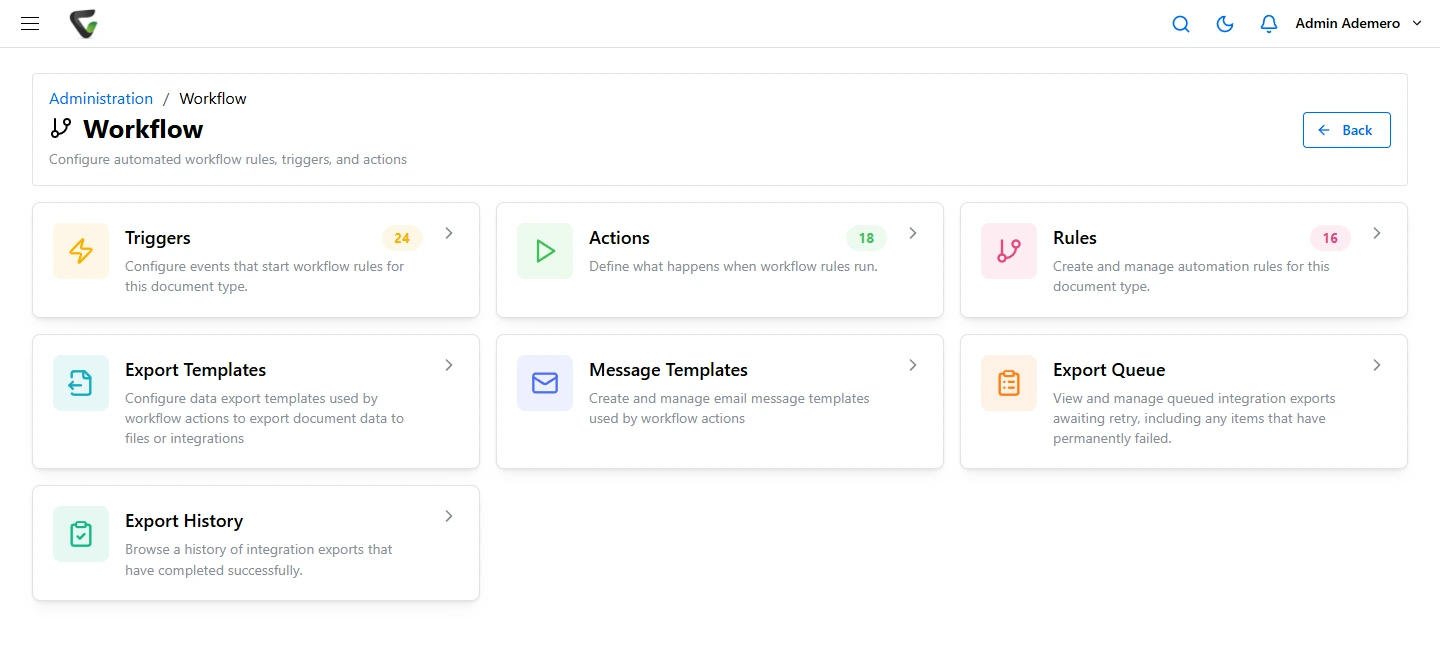
In Content Central a rule is one or more triggers plus an ordered list of actions, and it does nothing until it is marked Enabled. Several triggers can be combined with AND or OR, the actions run in the order listed, and the same trigger or action can be reused across rules. There are 25 trigger types, 11 live and 14 scheduled. Conditions are set on the trigger itself: a field value range, a full-text match, or a date offset such as "30 days before the expiration date". The help article on rules, triggers and actions covers the details.
The building blocks
Approvals
An approval is an ordered chain of people. Good approval software lets each person see only what needs their decision, approve or reject in a click, and pass notes to the next person. Look for: groups as well as named people, voting rules for groups (one person, a majority, a set number, or everyone), a choice of where a rejection goes, and the ability to name a substitute during an absence. Content Central has all of these, plus approve and reject links inside the arrival email and an optional PIN to approve, recorded in the audit trail. See approval workflows.
Routing and work queues
Not every step is a yes or no. Some documents just need to reach a person or team to be worked: a claim to an adjuster, a contract to legal. A work queue holds them until someone marks their part complete, and arrival, departure and age triggers keep the queue moving.
Deadlines and escalation
Deadlines can sit on the whole approval or on each member, with a message to the member and chosen administrators when time is running out. Escalation is a scheduled rule: when a stage has waited too long, raise the priority and tell someone senior. Write the escalation rule at the same time as the approval; it is the part people forget.
Electronic signatures
Built-in signatures save sending a document out to a separate service and back. In Content Central you can request signatures from colleagues or anyone with an email address, set a signing order so each person is asked only after the previous one signs, and lock signature spots in place with a reusable layout. An approver's saved signature can also be stamped automatically when they approve. Once everyone has signed, the signatures are flattened into a new PDF version. See electronic signatures.
Forms
A form is the cleanest way to start a workflow, because the data arrives already typed. A Content Central capture form is a fillable PDF whose fields match the document's index fields: when someone submits it, the completed form and its data are filed together, and a rule can react to the submission straight away. Forms can be emailed to people without accounts, who submit through an expiring link. See electronic forms.
Packets
Many processes are about a set of documents rather than one: a loan file, a student record, a new hire's paperwork. A packet gathers every document that shares a key value, such as a loan number or employee ID, marks each document type required or optional, and shows Complete or Incomplete with the missing types listed. Nobody assembles a packet by hand; documents join it as they are filed. See document packets.
Audit trail
Every automated step should leave a record: who approved, when, with what note; who viewed or changed a document; which emails went out and to whom. Content Central records these events, including approvals with PIN and signature completions, and every document keeps its own version history. An audit trail is what lets you automate with confidence, because you can always prove what happened.
Three worked examples
Each example below is built from a real recipe in the Content Central help library. The document types, field names and amounts are illustrations; use your own.
1. Contract renewal reminder
The problem: contracts auto-renew because nobody noticed the notice period. The rule:
- 01
Prepare the data
Give the Contract document type an Expiration Date field and capture it when each contract is filed. Without the date, no rule can help. - 02
Trigger and condition
A scheduled Content Query trigger, checked daily, that matches contracts whose expiration date is 30 days away. - 03
Action
Send E-mail to the person or group who owns contracts, using a message template with merge codes so the email names the contract, the date and links to the document. - 04
Avoid repeats
Set the trigger’s Reprocess Matching Records After setting so the same contract does not send an email every day. If renewals matter enough, add a second rule at 7 days that also emails a manager.
Help library
2. HR onboarding packet completeness
The problem: a new hire starts work and HR discovers weeks later that a required form was never returned. The setup:
- 01
Define the packet
A packet template keyed on Employee ID, listing the onboarding document types and marking which are required (for example the signed offer letter, tax forms and the policy acknowledgement). - 02
Collect the forms
Email the new hire the capture forms. They fill and submit them through an expiring link without needing an account. Each submission is filed with its data; because the forms carry the Employee ID field, every one joins the packet automatically. - 03
Collect signatures
Send the policy acknowledgement as a signature request to the new hire’s email address. The signed PDF is saved as a new version. - 04
Chase the gaps
A scheduled Packet Query rule finds onboarding packets that are still Incomplete and emails HR to follow up. The Incomplete Packets report can also run on a schedule for a weekly list. - 05
Act on completion
A second Packet Query rule on Complete packets assigns the file to the HR work queue for a final check.
3. Accounts payable approval by amount
The problem: small invoices wait behind large ones, and large ones are approved by whoever is around. The rules:
- 01
Route on capture
A Content Capture trigger on the Invoice type with an amount range: under 5,000 starts a one-approver process; 5,000 and over starts a two-step process (the department manager, then a finance group that approves by majority). - 02
Set deadlines
Give each member a deadline, with deadline messages to the member and the AP supervisor. Turn on approve and reject links in the arrival email so approvers can act from their inbox. - 03
Escalate
A scheduled approval trigger finds stages that have waited more than 3 days, raises their priority and emails the AP supervisor. - 04
Export when approved
After final approval, export the invoice data to the accounting system (QuickBooks Online or Desktop, Sage 50, Sage X3, Workday or Epicor) and record the result in an export status field.
Help library
For the whole AP process around these rules, read our accounts payable automation guide.
How to map a process before you automate it
Automating a muddled process gives you a faster muddle. An hour with a whiteboard and the people who do the work is the best investment in the project.
- 01
Follow one real document
Pick a recent example and trace it from arrival to archive. Write down every hand-off, every wait and every place it was copied or re-keyed. - 02
Mark the decisions
Every place someone decides (approve, reject, send back, escalate) and what the decision depends on: an amount, a department, a document type. - 03
Name the owners
For each step, a person or a group, and who covers when they are away. - 04
Set the clocks
How long each step should take, and what should happen when it takes longer. - 05
List the exceptions
Missing data, wrong vendor, duplicate, rejected. Each needs a path, even if the path is “send to a person”. - 06
Write the rules as when, if, then
One line per rule. If a rule needs a paragraph, it is two rules. - 07
Automate one rule, then watch
Turn on the routing rule first, watch it for two weeks, then add reminders, escalation and exports.
Common mistakes
Automating the exception instead of the rule
Build the path 90 percent of documents take first; send the odd ones to a person.Approvals with no deadline
An approval without a clock is a slower version of the paper tray.Routing to named people only
Use groups and substitutes, or work stops when someone goes on holiday.Too many notifications
If people get an email for everything, they read none of them. Notify on arrival and on escalation; let queues do the rest.No owner for the rules
Someone must review the rules when the organization changes: new approvers, new thresholds, new document types.
Where Content Central fits
Content Central is document management on your own servers, with the workflow engine built in: rules, approvals, deadlines and escalation, work queues, electronic signatures, capture forms, packets, retention and a full audit trail. People work in a web browser, and on a phone the approval queue switches to cards with approve and reject buttons. Documents arrive from CapturePoint 6 scanning stations, mailboxes, watched folders and forms, so the workflow starts the moment a document is filed.
Each building block has its own page with diagrams:
- Workflow automation: rules, triggers, actions and real recipes.
- Approval workflows: chains, voting rules, deadlines and escalation.
- Electronic signatures: signature requests, signing order and sign on approval.
- Electronic forms: fillable PDFs that file themselves with their data.
- Document packets: complete files for every loan, student, employee or vendor.
The workflow recipe browser in the help library has ready-made patterns to start from.
Questions
Do I need a developer to automate document workflows?
Not with a rules-based system. In Content Central an administrator builds each rule in a form: pick the triggers, set the conditions on them, and list the actions in order. Developers come in only when you want to call your own program or script from a rule.
What is the difference between a workflow and an approval?
An approval is one kind of workflow: an ordered chain of people who approve or reject. Workflow is the wider set of rules around it, such as starting the right approval, reminding people, escalating, filing and exporting when it is done.
Which process should we automate first?
One with steady volume, a clear owner and a pain everyone feels: invoice approvals, contract renewal reminders, or onboarding paperwork that is never complete. Automate one rule, watch it for two weeks, then add the next.
Can outside people take part without an account?
Yes, in specific ways. In Content Central, signature requests can go to any email address, and capture forms can be emailed to people without accounts, who submit them through an expiring link.
Related guides
- Accounts payable automation: a step-by-step guideEvery AP step, what software can take over, the controls to keep, and a staged rollout.
- Intelligent document capture explainedScanners, email, folders and forms; separation and indexing; desktop station or capture server.
- Intelligent document processing (IDP) explainedClassify, split, extract, validate and review: how IDP works and how to evaluate a tool.
See it on your own process
Bring one process to a free demo. We will build the rules with you.
Content Central runs approvals, deadlines, escalation, signatures, forms and packets on your own servers. In a demo we map one of your processes and show it running, rule by rule.
Runs on your own Windows servers; people work in a web browser. Quoted for your users and setup. Get pricing