Pillar guide · Capture
Intelligent document capture: how documents get in, and what to put where
Scanners, mailboxes, folders and forms; separating, recognizing and indexing what arrives; the difference between a capture front end and a document system; and when a desktop station beats a capture server.
For records managers, office managers and IT admins planning how paper and files get into their systems, and anyone replacing an aging scanning setup.
Document capture is everything between a document arriving and that document sitting in the right place with the right data attached. It is the least glamorous part of document management and the part that decides whether the rest works. A document filed under the wrong type, split in the wrong place or indexed with a typo is, for practical purposes, lost.
This guide covers where documents come from, the three jobs capture has to do, how capture relates to the system that stores your documents, and how to choose between a capture station on a desk and a capture service on a server.
What intelligent document capture is
Older capture meant scanning: a person fed paper, typed a few index values and pressed save. Intelligent capture does the typing and the sorting. It decides where each document starts, what it is and which values describe it, and asks a person only when it is unsure. The word "intelligent" is earned by three behaviors: it handles layouts it was not configured for, it says when it is unsure, and it improves from corrections. Our intelligent document processing guide goes deeper on that reading step.
The four ways documents come in
Map every source before choosing a tool. Most organizations have more than they think: the scanner at the front desk, a shared AP mailbox, a folder a billing system writes to every night, and forms people fill in.
Scanners
- What to plan for:
- Mixed stacks, two-sided pages, blank backs, crooked or faint pages. Who scans, how often, and where review happens.
- How Ademero handles it:
- CapturePoint 6 scans with TWAIN scanners on a Windows PC. Content Central can also scan from the browser (DirectScan).
- What to plan for:
- Attachments versus the message itself, several invoices in one email, forwarding chains, reply noise.
- How Ademero handles it:
- Content Central monitors mailboxes (Microsoft 365, Gmail or IMAP), captures attachments, the message or both, and maps sender, subject and date to fields.
Folders
- What to plan for:
- Files dropped by other systems or people, subfolders, files that arrive half-written, duplicates.
- How Ademero handles it:
- Content Central watched folders pick up files, including subfolders; XML hand-offs can set the type and field values. CapturePoint 6 imports PDF, TIFF, JPEG, PNG, BMP and GIF files.
Forms
- What to plan for:
- Paper forms you scan, and digital forms people fill in. Digital forms can skip recognition entirely.
- How Ademero handles it:
- Content Central capture forms: a fillable PDF whose fields become the index data when it is submitted.
| Source | What to plan for | How Ademero handles it |
|---|---|---|
| Scanners | Mixed stacks, two-sided pages, blank backs, crooked or faint pages. Who scans, how often, and where review happens. | CapturePoint 6 scans with TWAIN scanners on a Windows PC. Content Central can also scan from the browser (DirectScan). |
| Attachments versus the message itself, several invoices in one email, forwarding chains, reply noise. | Content Central monitors mailboxes (Microsoft 365, Gmail or IMAP), captures attachments, the message or both, and maps sender, subject and date to fields. | |
| Folders | Files dropped by other systems or people, subfolders, files that arrive half-written, duplicates. | Content Central watched folders pick up files, including subfolders; XML hand-offs can set the type and field values. CapturePoint 6 imports PDF, TIFF, JPEG, PNG, BMP and GIF files. |
| Forms | Paper forms you scan, and digital forms people fill in. Digital forms can skip recognition entirely. | Content Central capture forms: a fillable PDF whose fields become the index data when it is submitted. |
Two quieter sources are worth listing too. Office users save documents from Word, Excel or Outlook: Content Central's Office and Outlook add-in files them directly. And documents that already arrive as files from many senders can go to a cloud service such as Paige, which reads them and returns data by download, SFTP or webhook.
The three jobs: separate, recognize, index
- 01
Separate
Decide where each document starts. The methods, from oldest to newest: a fixed page count (fine when every document is one page), separator sheets or barcodes between documents, and separation from the content itself. Our batch scanning and separation guide compares them in detail. - 02
Recognize
Turn the page into text (OCR), decode barcodes, and classify the document type. Image cleanup belongs here too: straightening, removing blank pages, fixing rotation. Recognition quality starts at the scanner, so scan at a sensible resolution and keep the glass clean. - 03
Index
Attach the values people will search and route by: vendor and invoice number, employee ID, loan number, claim number. Values can come from the page, a barcode, an email header, an XML file or a lookup against your own database. Unsure values wait for a person.
Capture front end vs document system
A capture front end gets documents in and turns them into files with data. A document system (document management, or a content repository) is where those files live: it controls who can see them, keeps versions, runs approvals and retention, and lets people search. The two are often sold together and often confused.
Main job
- Capture front end:
- Get documents in: split, read, index, check.
- Document system:
- Keep documents: store, find, route, retain.
Who uses it
- Capture front end:
- Scanning staff, AP clerks, a mailroom.
- Document system:
- Everyone who needs a document later, plus approvers and auditors.
When it runs
- Capture front end:
- At intake, in batches.
- Document system:
- For the whole life of the record, often many years.
What good looks like
- Capture front end:
- Few mis-splits, little typing, fast review.
- Document system:
- Fast search, the right access, a full audit trail, retention that runs itself.
Ademero product
- Capture front end:
- CapturePoint 6 (and Paige in the cloud)
- Document system:
- Content Central (on your own servers) or Nucleus One (cloud)
| Capture front end | Document system | |
|---|---|---|
| Main job | Get documents in: split, read, index, check. | Keep documents: store, find, route, retain. |
| Who uses it | Scanning staff, AP clerks, a mailroom. | Everyone who needs a document later, plus approvers and auditors. |
| When it runs | At intake, in batches. | For the whole life of the record, often many years. |
| What good looks like | Few mis-splits, little typing, fast review. | Fast search, the right access, a full audit trail, retention that runs itself. |
| Ademero product | CapturePoint 6 (and Paige in the cloud) | Content Central (on your own servers) or Nucleus One (cloud) |
Keeping them distinct in your head pays off. Capture technology moves fast; your system of record should not. A front end that exports clean, named documents to a standard destination can be replaced without touching years of filed records.
How CapturePoint 6 and Content Central fit together
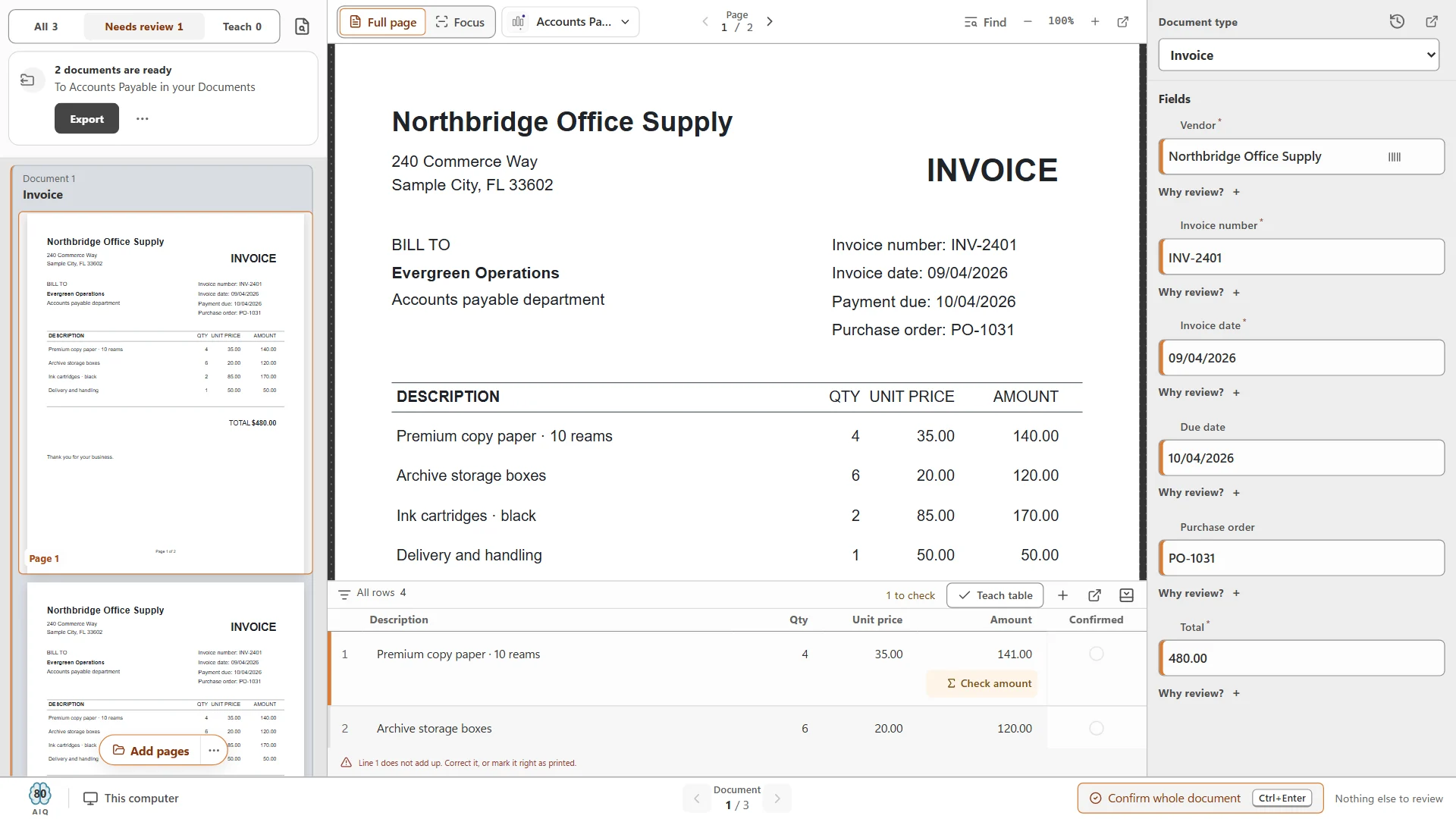
CapturePoint 6 is the high-volume scanning station. It splits stacks, recognizes document types, reads fields and line-item tables on the PC, checks line-item math, and puts anything doubtful in a review screen that says why it is waiting.
Content Central is document management on your own servers. CapturePoint hands it finished searchable PDFs with their field values over a dedicated API connection that an administrator can revoke at any time. CapturePoint can read a Content Central catalog to set up a scan job, or, in a new installation, propose and build the catalog for you. From there, Content Central takes over: full-text search, permissions, versions, workflows and approvals, retention.
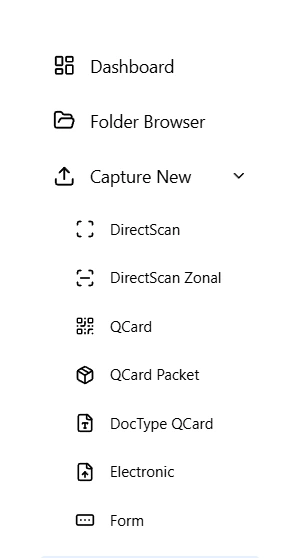
Content Central also has capture of its own, which covers the sources a desktop station does not: mailbox capture, watched folders, XML hand-offs, capture forms, the Office and Outlook add-in, scanning from the browser, and printable QCard separator sheets. Anything captured without full index data waits in its Coding Queue for someone to complete, so nothing is filed half-described. The Content Central help article on how documents get in lists every path, and the email capture article walks through mailbox setup.
Desktop capture station or capture server?
Both are capture; they differ in who is present. A desktop station is a PC with a scanner and a person who scans and reviews. A capture server is a service that watches mailboxes and folders and works unattended.
Paper arrives at a desk in stacks
- Better fit:
- Desktop station
- Why:
- Someone is already handling the paper; scanning and review happen in one place.
Review needs a trained eye (AP, claims, HR)
- Better fit:
- Desktop station
- Why:
- The reviewer sees the page and the values together and confirms in one keystroke.
Documents arrive by email around the clock
- Better fit:
- Capture server
- Why:
- Nobody has to be at a desk; the mailbox is read as messages arrive.
Another system drops files into a folder
- Better fit:
- Capture server
- Why:
- A watched folder or XML hand-off files them without a person.
You need to start this week, in one department
- Better fit:
- Desktop station
- Why:
- Install on one PC, try a sample job, scale by adding PCs.
Documents must stay on your own hardware
- Better fit:
- Either
- Why:
- CapturePoint 6 reads documents on the PC and Content Central runs on your own servers; neither needs a cloud service to read them.
| Situation | Better fit | Why |
|---|---|---|
| Paper arrives at a desk in stacks | Desktop station | Someone is already handling the paper; scanning and review happen in one place. |
| Review needs a trained eye (AP, claims, HR) | Desktop station | The reviewer sees the page and the values together and confirms in one keystroke. |
| Documents arrive by email around the clock | Capture server | Nobody has to be at a desk; the mailbox is read as messages arrive. |
| Another system drops files into a folder | Capture server | A watched folder or XML hand-off files them without a person. |
| You need to start this week, in one department | Desktop station | Install on one PC, try a sample job, scale by adding PCs. |
| Documents must stay on your own hardware | Either | CapturePoint 6 reads documents on the PC and Content Central runs on your own servers; neither needs a cloud service to read them. |
Most organizations end up with both. In an Ademero setup, CapturePoint 6 stations handle the paper at the desks that receive it, and Content Central's background capture handles the mailboxes and system folders, with everything landing in the same library under the same document types.
Planning checklist
Work through this before buying or rebuilding a capture setup. It takes an afternoon and saves weeks.
List every source
Scanners, mailboxes, folders, forms, Office users. Note rough volume and who handles each today.List the document types
Name each one and the fields people search or route by. Keep the field list short.Decide how stacks are separated
Content-based splitting, separator sheets or barcodes, or one document per scan.Decide the naming and filing rule
Folder and file names built from captured values, so nobody renames by hand.Decide what needs a person
Which fields are required, and how sure the software must be before a value passes on its own.Pick the system of record
Where documents live for their whole life, and who may see each type.Choose station, server or both
Match each source to the table above.Pilot with real documents
One department, a few weeks of real volume, the mis-splits and review time written down.
For accounts payable specifically, our AP document capture setup checklist goes step by step, and the CapturePoint help library covers job setup.
Common mistakes
- Capturing too many fields. Every field costs review time. Capture what someone will search, route or post by.
- Treating email as one source. An AP mailbox, a claims mailbox and a general inbox behave differently; give each its own rules.
- Leaving filing to people. If staff drag files into folders after capture, the naming will drift within a month. Let capture name and file.
- Ignoring the scanner. Recognition starts at the glass. Worn feed rollers, dirty glass and a resolution set too low cause errors no software setting can undo. Scan text documents in black and white or grayscale at a sensible resolution, turn on duplex where backs carry content, and clean the scanner on a schedule.
- Mixing document systems. If invoices land in one place, contracts in another and HR files in a third, people stop trusting search. Pick one system of record per kind of document and point every capture source at it.
- Skipping the pilot. A vendor demo on clean samples tells you little about your crooked, stapled, two-sided reality.
Questions
What is the difference between document capture and intelligent document processing?
Capture is the whole job of getting documents in: from scanners, mailboxes, folders and forms, split, recognized and indexed. Intelligent document processing describes the AI that does the hardest part of that job, reading varied documents and pulling checked data out of them. Modern capture uses IDP inside it.
Do we still need separator sheets?
Not always. Software that finds document boundaries from the content can split a mixed stack without them, which saves printing and inserting sheets. Separator sheets and barcodes remain a dependable choice for very uniform, very high-volume work, and some teams keep them for that.
Can one capture station serve several departments?
Yes. A capture station runs jobs, and each job has its own document types, fields, review rules and export. Accounts payable, HR and records can share a scanner and a PC, each with its own job.
Where should captured documents live?
In a system people already search and that controls access, versions and retention: a document management system such as Content Central, or SharePoint, OneDrive, Google Drive or Dropbox for lighter needs. Capture should name and file each document so nobody has to move it afterwards.
Related guides
- Intelligent document processing (IDP) explainedClassify, split, extract, validate and review: how IDP works and how to evaluate a tool.
- Batch scanning and document separationHow to split a mixed stack into separate documents without separator sheets.
- How to name and file scanned documents automaticallyNaming patterns from captured values, folder rules and what to avoid.
Try it at your scanning desk
Turn a stack of paper into filed, named documents with data.
CapturePoint 6 splits the stack, recognizes each document type, reads the fields and line items on your own Windows PC, and files the result in folders, Content Central, SharePoint or OneDrive, Google Drive, Dropbox or Nucleus One.
Windows 10 and 11 (64-bit). No sign-up and no credit card; sample jobs included. Priced per scanning station, with unlimited scanning. Get pricing
Your documents arrive as files rather than paper? Paige reads them in the cloud and delivers clean data by download, SFTP or webhook.
Start free with Paige