Free tool · Accounts payable
Invoice processing cost calculator
Your invoices
The numbers filled in are example values to replace with your own. They are not industry benchmarks.
Wage plus benefits and payroll taxes.
Share that need fixing before they can be paid.
Minutes for each step
Left column: how long each step takes your team today. Right column: what you expect it to take once capture and approvals are automated. Both are example values. The exceptions row is minutes for each invoice that has a problem.
Open and sort
Open mail or email, unstaple, sort invoices from statements and other paper.
minminKey header fields
Vendor, invoice number, dates, PO number, totals.
minminKey line items
Each line: description, quantity, price, amount, GL code.
minminChase approval
Send it out, wait, follow up, answer questions.
minminFile and export
Name and file the PDF, post or export the bill to accounting.
minminFix exceptions
Minutes for each invoice that has a problem: totals that do not add up, missing PO, duplicate, wrong vendor.
minmin
Your estimate
Cost per invoice today
$7.29
12.5 minutes of staff time per invoice, on average
Today, every month
208 hours, $7,292
2,500 hours and $87,500 a year
With capture and approvals automated, at your estimate
63 hours, $2,188
$2.19 per invoice; 750 hours and $26,250 a year
The difference in your estimate
146 hours a month
$5,104 a month, 1,750 hours and $61,250 a year
Your estimate, worked out in your browser from the numbers you enter. Nothing is stored or sent. It is not a quote or a promise of savings; the only way to know the minutes after automation is to time them on your own invoices.
Where the hours go, step by step
Staff hours a month for each step, today and with automation at your estimate.
- Open and sort25 h, $875 today / 8.3 h, $292 after
- Key header fields33 h, $1,167 today / 8.3 h, $292 after
- Key line items50 h, $1,750 today / 8.3 h, $292 after
- Chase approval50 h, $1,750 today / 17 h, $583 after
- File and export25 h, $875 today / 4.2 h, $146 after
- Fix exceptions25 h, $875 today / 17 h, $583 after
How to measure each step honestly in one week
The calculator is only as good as the minutes you put in. Guesses made at a desk are almost always too low, because nobody remembers the interruptions. One ordinary week of timing gives you numbers you can defend in a budget meeting.
Pick a normal week, not month-end. Ask each person who touches invoices to keep a simple sheet by the keyboard: the step, the start time, the end time, and the invoice number. Use a phone timer if that is easier. At the end of the week, add up the minutes for each step and divide by the number of invoices that went through it.
| Step | How to time it |
|---|---|
| Open and sort | Time one full mail run and one pass through the AP inbox, then divide by the invoices in it. |
| Key header fields | Time 20 invoices from different vendors, not 20 from your easiest one. |
| Key line items | Time the same 20. Note how many lines each had; long invoices skew the average. |
| Chase approval | Count the minutes spent sending, reminding and answering questions, not the days the invoice waited. |
| File and export | Naming the PDF, filing it, and posting or importing the bill into accounting. |
| Fix exceptions | Keep a tally sheet: every invoice that needed a call, an email or a correction, and how long it took. |
Two rules keep the numbers honest. First, use the loaded cost of an hour, not the wage alone: add benefits and payroll taxes, or ask payroll for the figure they use. Second, time the work, not the waiting. An invoice that sat in a manager's inbox for six days cost you a late fee risk, but only the minutes someone spent chasing it belong in this calculator.
Where the time hides
Exceptions
The invoices that do not match are where the hours pile up: a total that does not add up, a missing or wrong PO number, a duplicate, a vendor whose bank details changed. One of these can take far longer than a clean invoice, which is why the calculator asks for exception minutes separately and multiplies them by your share of exception invoices. If you only time clean invoices, your estimate will look far better than your real week.
Approval chasing
Approvals rarely show up in anyone's timesheet. The minutes are spread thin: a reminder email, a hallway question, re-sending a PDF that got lost, explaining the coding to someone who was out. Ask the person who chases approvals to tally every touch for a week. It is the step most likely to be underestimated from memory.
The handoffs between steps
Printing an emailed invoice so it can be stamped, scanning it again after approval, renaming the file to match the filing rules: none of these are a step on the org chart, but they all take minutes. Put them in the step they belong to rather than leaving them out.
What automation changes, step by step
Once you have today's numbers, fill in the second column with what you expect after automation, and be conservative. Here is where Ademero products fit and what each one actually does.
Open, sort and key: CapturePoint 6
CapturePoint 6 runs on a Windows PC and reads invoices from your scanner or from PDF and image files. It splits a stack into separate documents, recognizes which are invoices, and pulls header fields and line-item tables. It checks the line-item math and flags anything that does not add up, with the reason shown on the review screen, so your team checks the problem cases instead of retyping every invoice. It learns from each confirmation and correction. Reading happens locally on the PC, and finished documents go to folders with a data file of every value, to Content Central, or to SharePoint, OneDrive, Google Drive, Dropbox or Nucleus One.
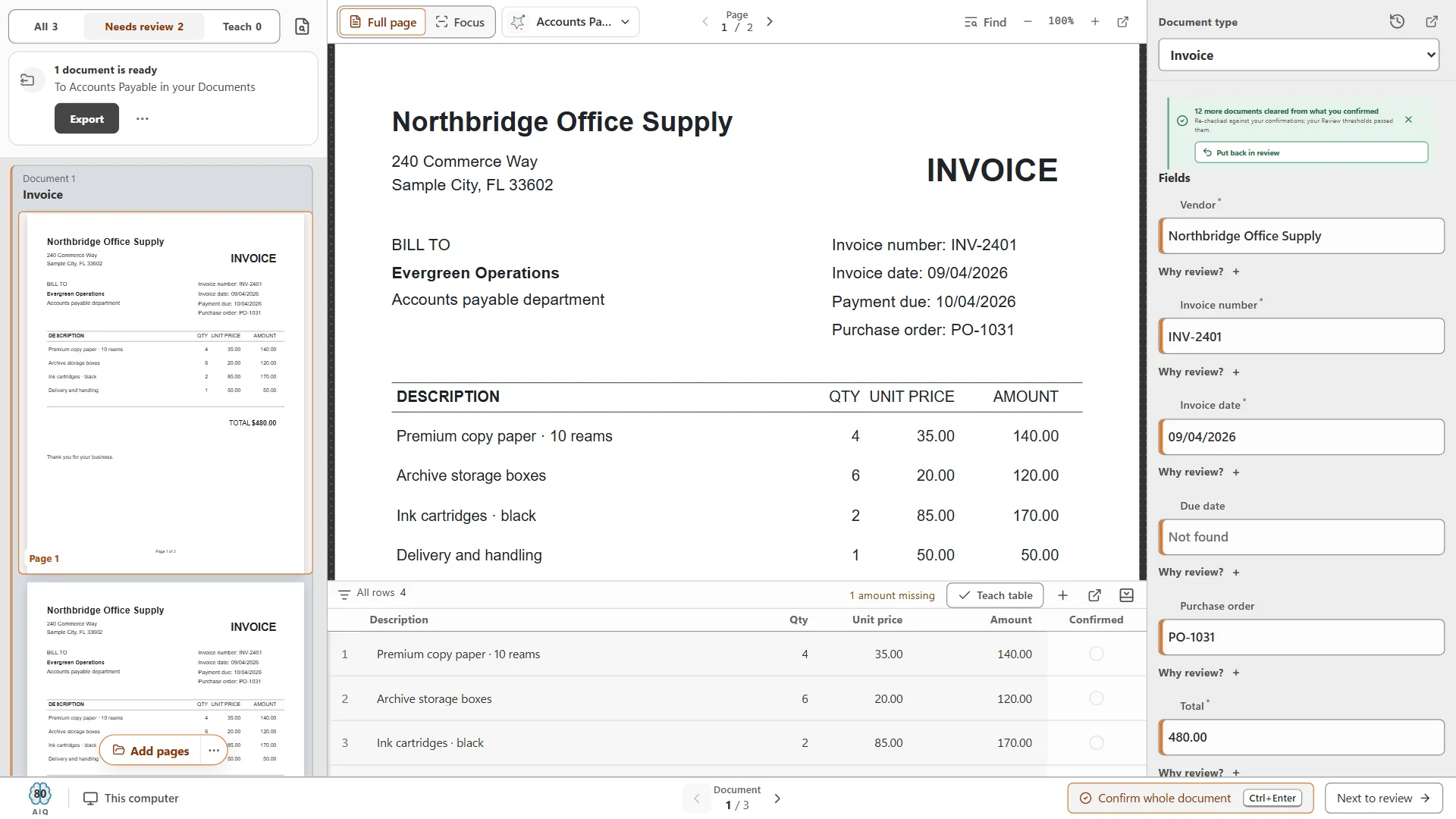
Review screen with an invoice's fields and line items beside the page, and items flagged for review. The minutes left in your "automated" column are mostly time spent here.
Chase approval, file and export: Content Central
Content Central is document management on your own servers. An approval can start the moment an invoice is captured, rules can send invoices over a set amount to a second approver, and approvals that wait too long can escalate. Approvers get an email with Approve and Reject links, a phone-friendly queue, and can name substitutes while they are away. Approved invoices can export to QuickBooks Online, QuickBooks Desktop, Sage 50, Sage X3, Workday or Epicor, with duplicate detection and an export status you can search on. In the help library:
Invoices that arrive as PDFs: Paige
If most invoices arrive by email and you want the data delivered into another system without a PC in the middle, Paige is our cloud service. Send it documents and get clean data back, header fields and line items included, by download, SFTP or webhook. It learns your layouts from a few samples. Read how Paige works.
Keep going
- Invoice processing with Ademero: the whole flow from intake to export.
- Invoice OCR, a practical guide: fields, line items, accuracy checks and how to evaluate a tool.
- AP document capture setup checklist: the decisions to make before the first invoice is scanned.
- CapturePoint 6 for invoices: what it reads and how the review screen works.
The most reliable way to fill in the "automated" column is to time it yourself. Install the CapturePoint 6 free trial, run a week of real invoices through it, and put the new minutes in. Share the link with your controller, or print the summary for the budget file.
CapturePoint 6 free trial
Time it on your own invoices.
CapturePoint 6 reads invoices on your own PC: it splits the stack, pulls header fields and line items, checks the math and shows you only what needs a look. The free trial starts the first time you open it, with no form. Run a week of real invoices and put the new minutes in the calculator.