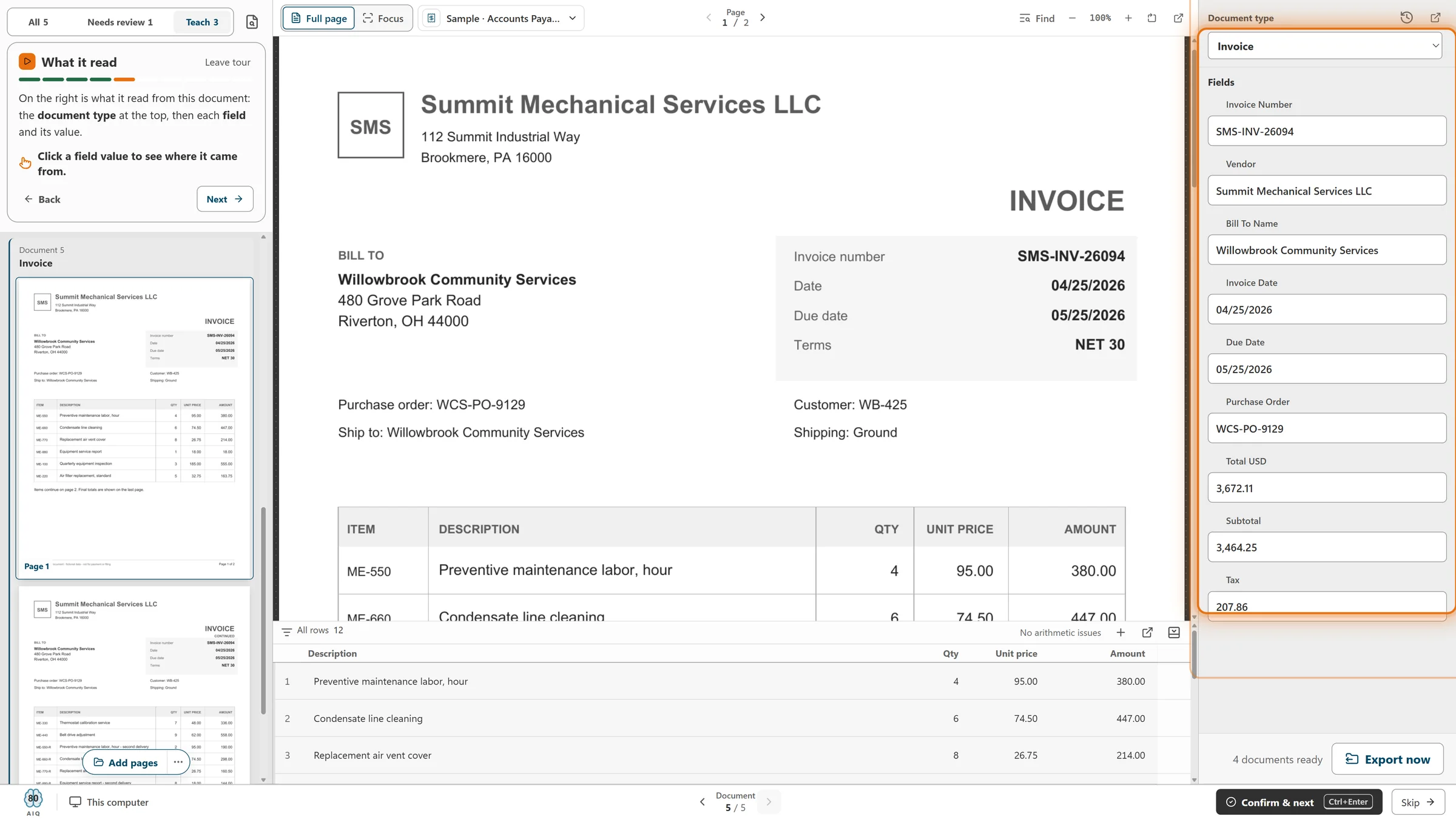
- Choose a saved connection, then a catalog. Or create a new catalog from the job, with its document types and fields.
- Match each document type and field to Content Central. Same names are matched for you and nothing is guessed: you choose the rest, or mark a field as not sent.
- “Check with Content Central” reviews the whole matching before any document goes.
- Content Central decides the folders and file names for its catalog.
- If Content Central changes one document type, only that type’s documents wait, with the reason in plain words. Everything else keeps going.
CapturePoint 6 integrations
Where CapturePoint 6 sends your documents
Every job files its documents in one main place: your own folders or Content Central. It can also send each finished PDF to one more place your team already works in: SharePoint or OneDrive, Google Drive, Dropbox or Nucleus One. Here is what lands in each, and where the values it read end up.
The free trial starts the first time you open it. No form to fill in.
Two choices per job
One main destination, plus one more if you want it.
You make both choices in Job setup › Export. Reading and extraction happen on the PC either way; only the finished document leaves it.
01 · Main destination, pick one
- A folderOn the PC or a network share. CapturePoint builds the folders and file names for you.
 Content CentralYour catalog takes the document, its type and its values, and does the filing.
02 · Also send to, optional
 SharePoint or OneDrive
 Google Drive
 Dropbox
 Nucleus One
The same PDF as the main export, sent from the PC with your own account. Each job sends to one of these.
At a glance
What arrives, and where the values go.
Every destination gets a searchable PDF: the scanned page with the words on it as real text, so search finds them. The difference is where the values CapturePoint read, like the vendor, date and total, end up.
Your folders
- What arrives
- A searchable PDF (PDF/A if you want it), a data file and a text file
- Where the captured values go
- The data file holds every field and line item; the PDF carries the fields too
- How you connect
- Pick a folder on the PC or a network share
Content Central
- What arrives
- The document, in the catalog and document type you matched
- Where the captured values go
- The Content Central fields you matched
- How you connect
- A saved connection to your Content Central
SharePoint and OneDrive
- What arrives
- The searchable PDF, in the library or folder you pick
- Where the captured values go
- Library columns with the same names as your fields, and inside the PDF
- How you connect
- Sign in with a Microsoft 365 work or school account
Google Drive
- What arrives
- The searchable PDF, in My Drive, a shared folder or a shared drive
- Where the captured values go
- The file’s description in Drive’s details, and inside the PDF
- How you connect
- Sign in with your Google account
Dropbox
- What arrives
- The searchable PDF, in the folder you pick
- Where the captured values go
- Inside the PDF
- How you connect
- Sign in to Dropbox
Nucleus One
- What arrives
- The searchable PDF, in a project or one of its folders
- Where the captured values go
- Nucleus One fields with the same names (or ones you choose), and inside the PDF
- How you connect
- An API key you make in Nucleus One
Your folders
Named, sorted and ready for anything that reads a folder.
The simplest way to hand documents to people, or to any system that picks files up from a folder. Alongside each PDF it writes a data file and a text file.
What each document becomes
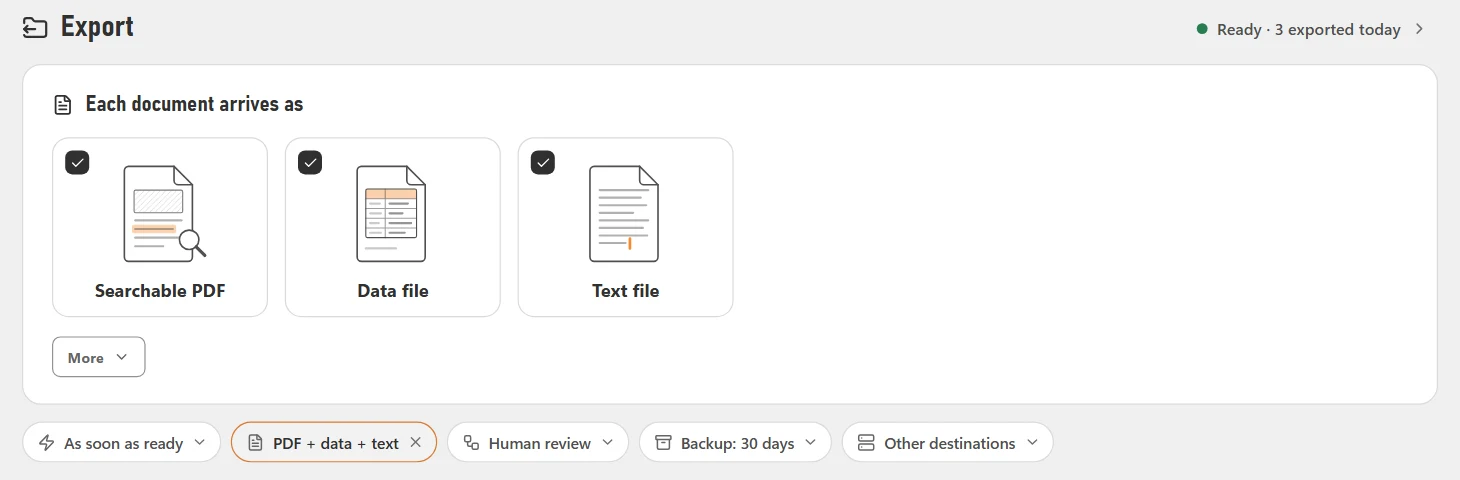
- A searchable PDF. Turn on archive-grade PDF/A (PDF/A-2u) for records you keep for years.
- A data file (JSON) with every value CapturePoint read, including line-item rows with description, quantity, unit price and amount, ready for another system to import.
- A text file with the words read from the pages.
- The values are written inside the PDF too: the file name as its title, the document type as its subject and every field in its keywords.
How the folders and names are built
- Each document type has its own naming: folder levels and a file name built from the document type, any field it reads, or your own words.
- Dates can show as the year, year-month, full date, month or day. When a value is missing, the wording you chose is used instead.
- If a name is taken, the new file gets -2, so nothing is ever overwritten.
- Put a private field like a tax ID in a name and CapturePoint points it out first.
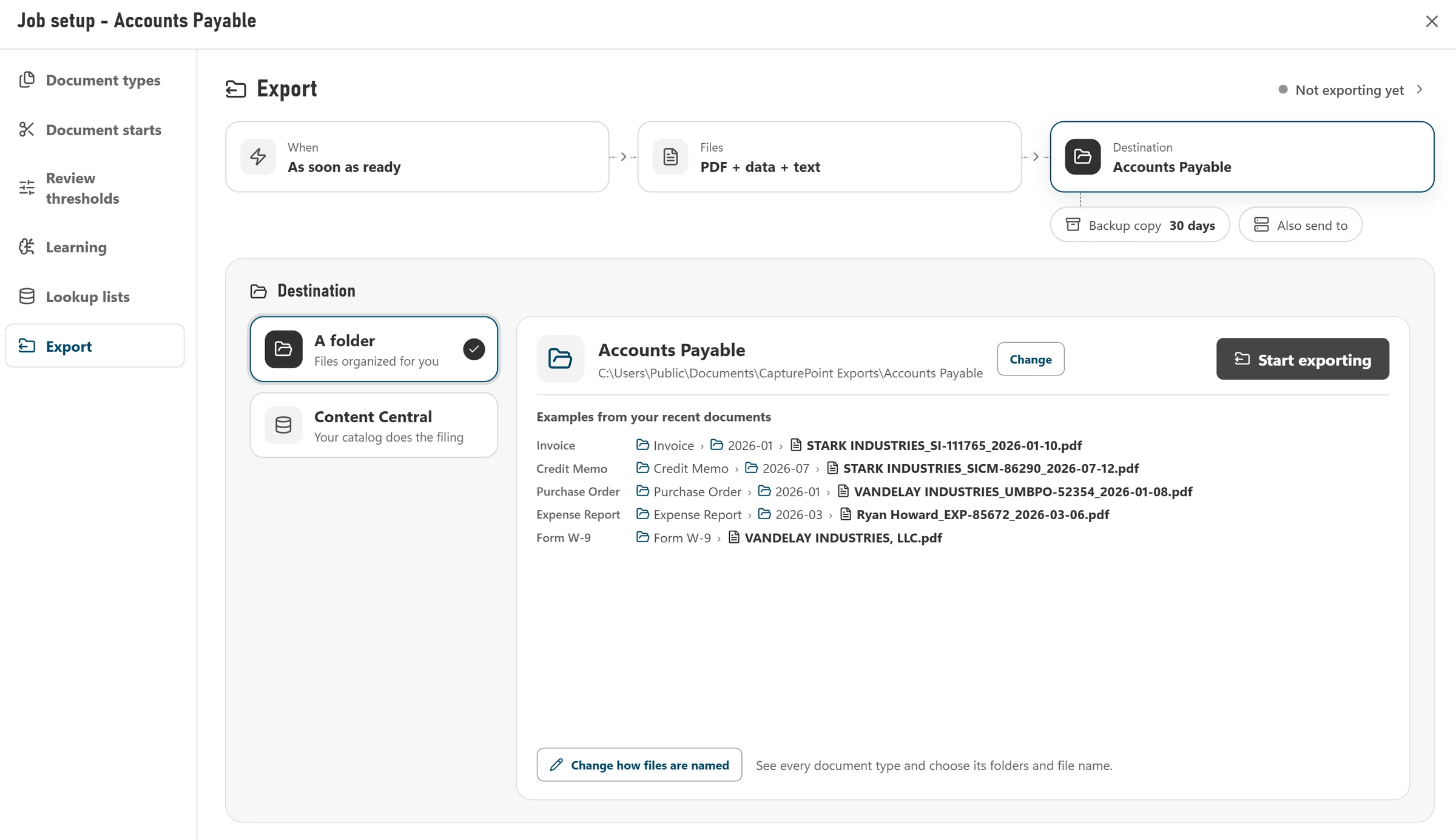
Export setup shows real examples from your recent documents, like Invoice › 2026-01 › STARK INDUSTRIES_SI-111765_2026-01-10.pdf.
More in our guide to naming scanned files automatically.
Destination by destination
The details that matter when you set it up.

SharePoint and OneDrive
For teams on Microsoft 365 work or school accounts.
Scan to SharePoint and OneDrive- Pick a SharePoint library or OneDrive folder. The picker lists your OneDrive and the sites you follow, with a search for other sites.
- Library columns whose names match a field are filled in, converted to the column’s type: text, choice, number, currency, date or yes/no.
- Personal Microsoft accounts are not supported.
- Send to My Drive, a folder someone shared with you, or a shared drive you belong to.
- Each value is written into the file’s description as a “Name: value” line, which people see in Drive’s details panel.
- The values are also stored as properties on the file.
Dropbox
For teams that share files through Dropbox.
- Pick a Dropbox folder, or make a new one from the picker.
- Dropbox has no place for custom values, so they travel inside each PDF: the file name as its title, the document type as its subject and every field in its keywords.
- Connect with an API key made in Nucleus One (your picture › API Keys › Add API Key), pasted into CapturePoint’s protected key window.
- Pick an organization, a project and, if you like, a folder in it.
- Each field goes to the Nucleus One field with the same name. Point one at another name, or leave it out.
- Dates, numbers and yes/no values are sent in the form Nucleus One expects. A value that does not fit its field is left out, and CapturePoint tells you which one.
- A document shows up in the project a few minutes after Nucleus One accepts it.
Cloud destinations
What every cloud destination does the same way.
The extra destination is set up in a few clicks under Other destinations, and it behaves the same whichever service you pick.
- It sends the same PDF the main export made, byte for byte, with the values inside.
- Files land in the job’s own folders and names, cleaned to each service’s naming rules so an odd character in a vendor name does not stop the upload.
- Nothing is overwritten: a taken name gets -2, -3. Nothing arrives twice, even when a send is interrupted and runs again.
- No connection? Documents wait and are tried again on their own. Signed out? They wait until you sign in again. Nothing is lost.
- Test delivery puts a small PDF in the folder and removes it, so you know it works before real documents go.
- Set it up after you have already exported? CapturePoint offers to send those earlier documents too.
- One line shows progress, like “41 sent · 2 waiting · 1 needs attention”, with the service’s reason and Try again.
When documents leave
On your schedule, and only once they are right.
As soon as they’re ready
Each document goes once it is ready.
Once a day
At the time you choose.
Only when I say
Nothing leaves until you click Export now.
With Human review, anything CapturePoint is unsure of waits in Needs review, with the reason, until someone checks it. Everything else goes on its own.
Questions about export
Do my documents pass through an Ademero server?
No. CapturePoint 6 reads and extracts your documents on the PC. A folder export stays on your PC or network. A cloud destination gets the finished PDF straight from the PC, sent with the account you signed in with.
Can one job send to more than one cloud service?
Each job has its main destination (a folder or Content Central) and can also send to one of SharePoint or OneDrive, Google Drive, Dropbox or Nucleus One.
Does the PC have to stay on?
Cloud deliveries run while CapturePoint is open. Anything still waiting when it closes goes the next time it starts, and nothing is sent twice.
Do the line items go to SharePoint, Google Drive or Nucleus One?
The cloud destinations receive the document’s fields. Line-item rows are in the folder export’s data file, next to every other value CapturePoint read.
Our system is not on this list. Can we still use CapturePoint 6?
If your system can pick files up from a folder, the folder export gives it a searchable PDF and a data file with every value, named the way you choose. Tell us what you use on a free demo and we will look at it with you.
Keep reading
- CapturePoint 6The whole product: scanning, reading, review and learning.
- Searchable PDF vs PDF/AWhich one to keep, and when archive-grade matters.
- Guide: scan to SharePoint or OneDrivePrepare the library, match the columns, avoid the usual mistakes.
- CapturePoint help libraryHow-to articles at help.ademero.com.
See your own documents land where your team works.
Download CapturePoint 6 and take the 2-minute tour, then try it on a few of your own documents, or book a free demo and we will set it up with you.