Operations guide · Paige
How to automate data entry from PDFs and emails
If someone on your team opens emailed PDFs all day and retypes what is on them into another system, this is how to hand that job to software without losing control of the numbers.
For operations, accounts payable and back-office leads whose people key invoices, orders, statements or forms from email attachments.
The pattern is the same in almost every office. Documents arrive as PDF attachments: invoices from vendors, orders from customers, statements, delivery receipts, applications. Someone opens each one, reads it, and types the same values into an accounting system, an ERP or a spreadsheet. It is slow, it is easy to get wrong, and the person doing it could be doing something better.
Automating it does not mean trusting a machine blindly. Done well, software does the typing and a person checks only what the software was unsure of. This guide shows the flow, how to choose the right tool, and how to set it up with Paige, Ademero's cloud document AI.
Receive, read, check, deliver
Every working setup has the same four steps:
- 01
Receive
Documents land in one place without anyone saving attachments by hand. With Paige, every job has its own email address; you forward the mailbox or set a rule that copies the right messages to it. - 02
Read
The software separates a PDF that holds several documents, works out what each one is, and pulls the fields and table rows you would have typed. - 03
Check
Every value is checked. Anything missing, low in confidence or of an uncertain type is held for a person, with the reason, instead of flowing through as a quiet mistake. - 04
Deliver
Clean data and a searchable copy of the document go to the system that needs them, named and filed the same way every time.
Start with what you retype
Before choosing anything, spend an hour writing down what your team actually keys today. Take one real document and list every value that gets typed. For the sample Bowman Fabrication invoice in our screenshots, that is:
Vendor
- On the sample invoice:
- Bowman Fabrication, LLC
- Typed into:
- Vendor lookup
Invoice number
- On the sample invoice:
- 4801
- Typed into:
- Bill reference
Invoice date and due date
- On the sample invoice:
- March 9, 2026 and April 8, 2026
- Typed into:
- Bill dates
PO number
- On the sample invoice:
- PO 7311
- Typed into:
- Matching
Line items
- On the sample invoice:
- 4 rows: description, quantity, unit price, line total
- Typed into:
- Bill lines
Total
- On the sample invoice:
- $5,910.00
- Typed into:
- Bill amount
| Value | On the sample invoice | Typed into |
|---|---|---|
| Vendor | Bowman Fabrication, LLC | Vendor lookup |
| Invoice number | 4801 | Bill reference |
| Invoice date and due date | March 9, 2026 and April 8, 2026 | Bill dates |
| PO number | PO 7311 | Matching |
| Line items | 4 rows: description, quantity, unit price, line total | Bill lines |
| Total | $5,910.00 | Bill amount |
Do the same for each kind of document that arrives, then add three more facts: roughly how many arrive each week, which mailbox they come to, and which system each value ends up in. That list becomes your setup: the document types, the fields, the address to forward, and the destination.
PC or cloud? Choosing between CapturePoint 6 and Paige
Ademero makes two document AI products that both read fields and line items. They suit different starting points, so pick by where your documents begin and where the data has to go.
Runs
- CapturePoint 6:
- On a Windows 10 or 11 PC; documents are read on the PC itself.
- Paige:
- In your browser, on Google Cloud; nothing to install.
Documents start as
- CapturePoint 6:
- Paper in a TWAIN scanner, or PDF and image files on the PC.
- Paige:
- Email attachments, uploads, files from other systems, and scans through Paige Scan.
Checking
- CapturePoint 6:
- A review screen with the reason for each flag; Ctrl+Enter confirms a document.
- Paige:
- Held documents wait in Paige with the reason, beside the page.
Results go to
- CapturePoint 6:
- Folders, Content Central, SharePoint or OneDrive, Google Drive, Dropbox or Nucleus One.
- Paige:
- Download, an SFTP folder, or a signed webhook into your own system.
Best when
- CapturePoint 6:
- Paper arrives at a desk, or documents must stay on your own computers.
- Paige:
- Documents arrive by email and should be handled without anyone at a desk.
| CapturePoint 6 | Paige | |
|---|---|---|
| Runs | On a Windows 10 or 11 PC; documents are read on the PC itself. | In your browser, on Google Cloud; nothing to install. |
| Documents start as | Paper in a TWAIN scanner, or PDF and image files on the PC. | Email attachments, uploads, files from other systems, and scans through Paige Scan. |
| Checking | A review screen with the reason for each flag; Ctrl+Enter confirms a document. | Held documents wait in Paige with the reason, beside the page. |
| Results go to | Folders, Content Central, SharePoint or OneDrive, Google Drive, Dropbox or Nucleus One. | Download, an SFTP folder, or a signed webhook into your own system. |
| Best when | Paper arrives at a desk, or documents must stay on your own computers. | Documents arrive by email and should be handled without anyone at a desk. |
If most of your volume is paper, start with CapturePoint 6: it has a free trial that starts on first launch. If it arrives by email, read on.
Step-by-step setup with Paige
Plan on an afternoon for the first job. Start with one document stream, usually the one that takes the most typing.
- 01
Create a job for one stream
Sign up, then make a job named for the work, such as “AP invoices”. A job is one stream of documents with its own setup, address and destinations; add more jobs later for orders or statements. - 02
Teach it with real samples
Upload a folder of recent documents from the mailbox: your biggest senders, a few unusual ones and at least one poor scan. Paige reads them and proposes the document types, fields and tables. Confirm, rename fields to match your inventory, and remove what you do not need. - 03
Point the email at it
Copy the job’s email address and forward the shared mailbox to it, or add a rule that forwards only messages from vendors. PDF, TIFF, PNG and JPEG attachments become pages, including files inside forwarded emails, ZIP files and Outlook .msg files. Logos, signature images and auto-replies are recognized and left out. - 04
Decide who may send
Optionally switch on “Only listed senders” and list addresses or whole vendor domains. Paige checks the sender’s address, so treat the list as a filter, not a lock. - 05
Set file naming
Choose folders and file names per document type from the type, field values, dates and your own words, for example invoice, then month, then vendor, invoice number and date. Sensitive values such as tax ids are kept out of the suggested names. - 06
Choose where results go
Download is always there. Add an SFTP folder your accounting system imports from, or a webhook if a developer will post the data into your system. Use the Test button on each before you rely on it. - 07
Run it on Human review first
For the first weeks, every document Paige is unsure of waits for a person. Keep a note of what gets fixed. Each correction teaches the job, so the list of held documents should shrink. - 08
Set retention, then widen
Choose how long the job keeps documents after export: 7 days, 30 days, a year or forever. Once the first stream runs smoothly, add the next.
Controls that keep the data right
The worry with automation is a wrong number reaching the ledger without anyone noticing. These are the controls that prevent it.
A check on every document
Every reading ends in a check. A document passes only when its values were found and Paige is confident of them and of its type. A document with a missing value, a low-confidence value or an uncertain type is held, and the reason travels with it. A document on which nothing at all was read is always held, whatever the job's settings, so nothing goes out empty.
People review only what was held
On Human review, held documents wait in Paige until a person confirms them. The reviewer sees the page beside the values and the line items below, fixes what is wrong, and confirms. Two reviewers are never handed the same document at once, and confirming needs the reviewer role, so you decide who can release data.
Choose how much runs on its own
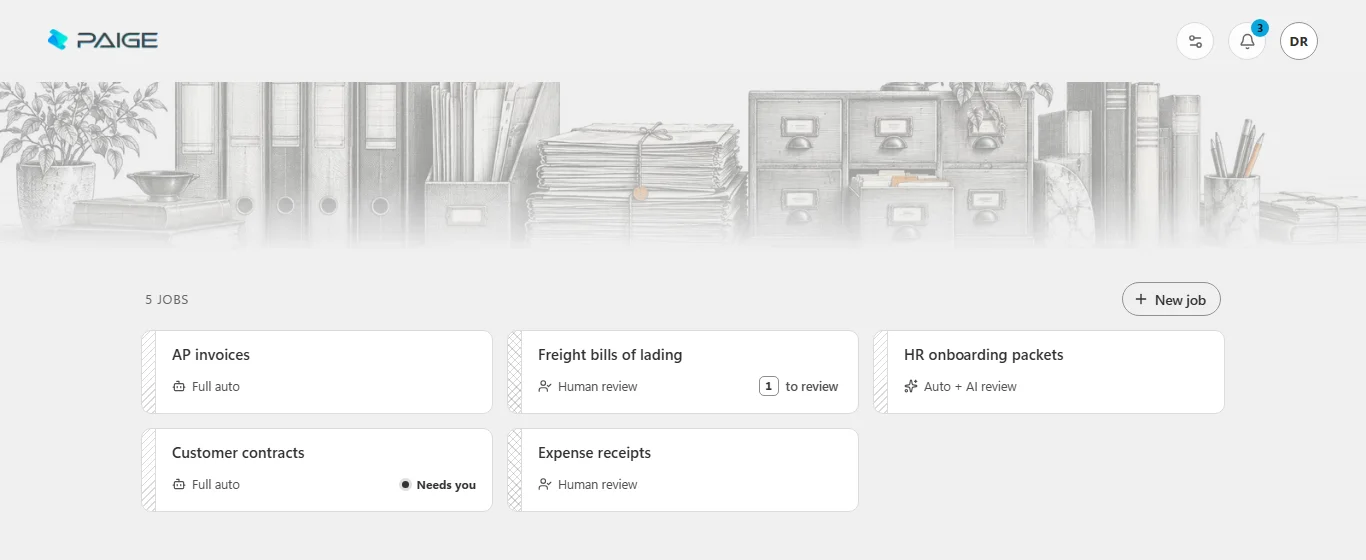
Human review
- A document Paige is unsure of:
- Waits for a person. Every job starts here.
Auto + AI review
- A document Paige is unsure of:
- An AI reviewer checks the uncertain values against the page and releases it.
Full auto
- A document Paige is unsure of:
- Goes out as read, with its confidence; your own system checks what matters.
| Processing mode | A document Paige is unsure of |
|---|---|
| Human review | Waits for a person. Every job starts here. |
| Auto + AI review | An AI reviewer checks the uncertain values against the page and releases it. |
| Full auto | Goes out as read, with its confidence; your own system checks what matters. |
Documents that pass the check go straight out in every mode. Many teams keep money documents on Human review and move routine ones, such as delivery receipts, to an automatic mode once they trust them.
Nothing lost on the way
- Email you can audit. Each job lists its recent messages: subject, sender, which files became documents, and any file left out with the reason.
- One bad file costs only itself. A torn PDF in a message does not stop its other attachments.
- Failed deliveries wait. If your SFTP server or endpoint is down, Paige retries, then marks the destination down with the error. Press Retry once it is fixed and everything that failed goes out.
- A record after the files are gone. When retention removes a document's files, its fields and history stay in the job.
Keep the controls that belong downstream
Reading a document correctly is not the same as approving it. Keep duplicate-invoice checks, PO matching and payment approval in your accounting process. The accounts payable automation guide walks through which controls to keep and where.
Common mistakes
Teaching with perfect samples only
Include faint scans, multi-page documents and odd senders, or the first bad week will surprise you.One job for everything
Invoices, orders and statements need different fields. Give each stream its own job and address.Going fully automatic on day one
Run on Human review until the held list is short and the fixes are rare.Field names nobody downstream recognizes
Name fields the way your system and your import file name them.Forgetting the mailbox rule
Make sure every way documents arrive, including a second inbox, forwards to the job.Never testing the destination
Use Test on the SFTP folder or webhook before real documents depend on it.
Go deeper
Questions
Can Paige read data from the email body, not just the attachments?
Yes, if you switch it on for the job. The message body then becomes a document of its own, with the sender, recipients, subject and date at its head, and Paige reads it like any other document. It is off by default, because most teams only want the attached PDFs.
Will it put the data straight into our accounting system?
Paige delivers a searchable PDF and the data by download, to an SFTP folder or to a webhook. From there it goes in the way your system takes data: a folder import, a small integration on your side, or a partner who connects the two. Tell us what you use when you book a demo and we will show you the route.
What if a vendor sends a scan of a crooked or faint page?
Paige reads images as well as digital PDFs. If it cannot find a value, or is unsure of one, the document is held with the reason instead of going out with a guess, and a person fixes it beside the page.
What does it cost?
Paige is sold as monthly plans sized to your document volume. Tell us about your setup on the pricing page and we will send pricing that fits, or book a free live demo and we will walk you through it.
Related guides
- Document data extraction API: documents in, JSON outHow Paige takes documents in, what comes back, webhooks, SFTP and error handling.
- Invoice OCR: how invoice data extraction worksFields, line items, accuracy, review, local vs cloud, and a buyer checklist.
- Accounts payable automation: a step-by-step guideEvery AP step, what software can take over, the controls to keep, and a staged rollout.
Stop retyping this week
Forward one mailbox to Paige and watch the data come back.
Start free, teach a job with last month’s attachments, and point the email at it. Or book a free demo and we will set it up on your own documents with you.
Runs in your browser on Google Cloud; nothing to install. Sold as monthly plans sized to your document volume. Get pricing